How can we
help you?
Find answers to common questions about your Ekuri account, billing, VPS servers, and more.
Ekuri is a secure AI agent platform. We give you your own private instance of OpenClaw — a powerful open-source AI agent framework — running in an isolated environment with zero exposed ports. You connect via Telegram, the web dashboard, or the native Mac and iPhone apps.
OpenClaw is an open-source AI agent framework with 192K+ stars on GitHub. It can browse the web, run code, manage files, search the internet, and much more. Ekuri provides a secure, managed way to run OpenClaw without the hassle of self-hosting.
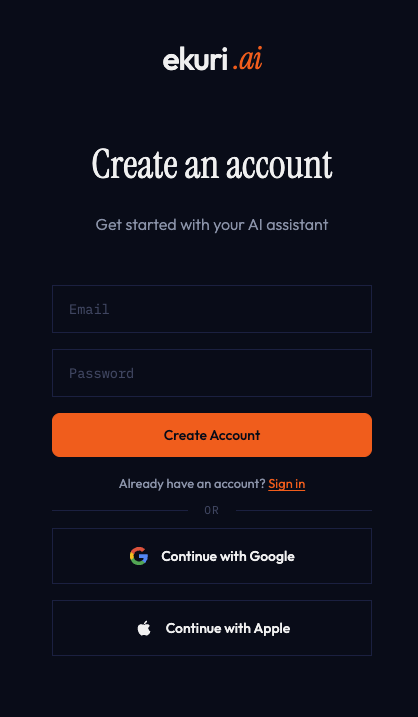
Head to ekuri.ai/login and sign in with Google, Apple, or email. Once signed in, choose a plan from the dashboard and you'll be up and running in under two minutes.
After choosing a plan, click "Deploy" in the dashboard. Your VPS provisions in about a minute and you'll get a unique subdomain (e.g. yourname.ekuri.ai). Click "Launch OpenClaw" to open the web console, or connect Telegram, Discord, or Slack from the dashboard.
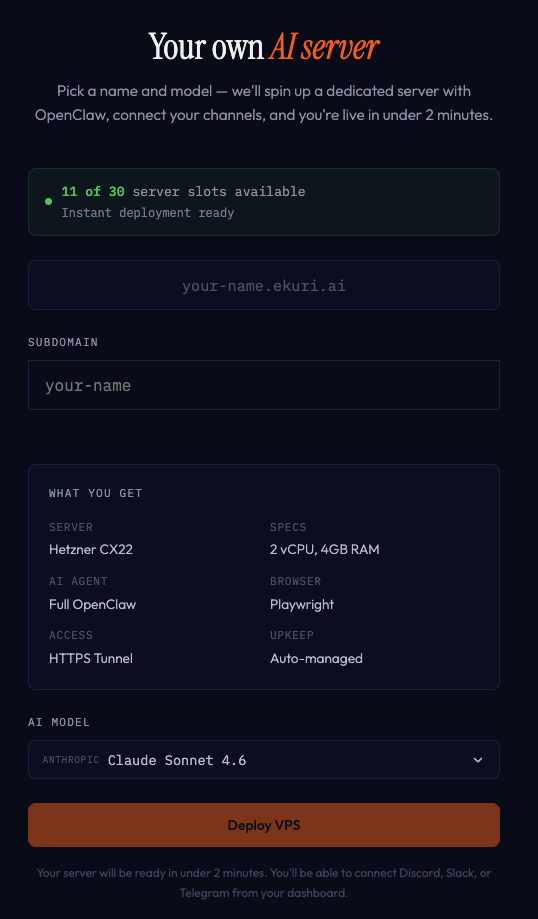
Most VPS instances are ready in about 1–2 minutes thanks to our warm pool system. Your server is pre-provisioned and waiting — we just need to configure it for your account. You'll see real-time progress in the dashboard.
Your VPS gets a unique subdomain like yourname.ekuri.ai. Open it in your browser to access the OpenClaw web console. Access is protected by Cloudflare Access — you'll verify your email the first time, then sessions last 30 days.
Go to your dashboard and click the restart button on your VPS management card. This restarts the OpenClaw gateway service without affecting your server or data. The process takes about 30 seconds.
We check your VPS health every 30 seconds via HTTPS through Cloudflare. If your gateway becomes unhealthy, we automatically restart it. If it fails repeatedly, our team gets alerted via Telegram. You can see your server's current status in the dashboard.
SSH access is not currently available on Managed VPS plans. All access goes through the web console, protected by Cloudflare Access. Your AI agent can run shell commands on the server on your behalf through OpenClaw's built-in terminal tools.
Open your dashboard and use the AI Model selector to switch between models like Claude Haiku, Sonnet, Opus, GPT-4o-mini, GPT-5, o3, and more. The gateway restarts automatically after a model change. You can also change models directly within the OpenClaw web console.
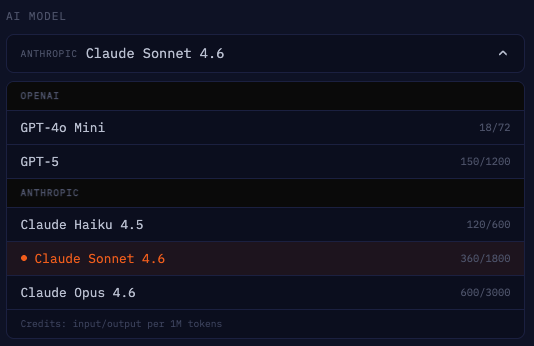
Credits are our universal currency for AI usage. Each credit represents a fixed amount of API cost, regardless of which AI model you use. More capable models (like Opus) use more credits per message than lighter models (like Haiku). Your plan includes a monthly credit allowance.
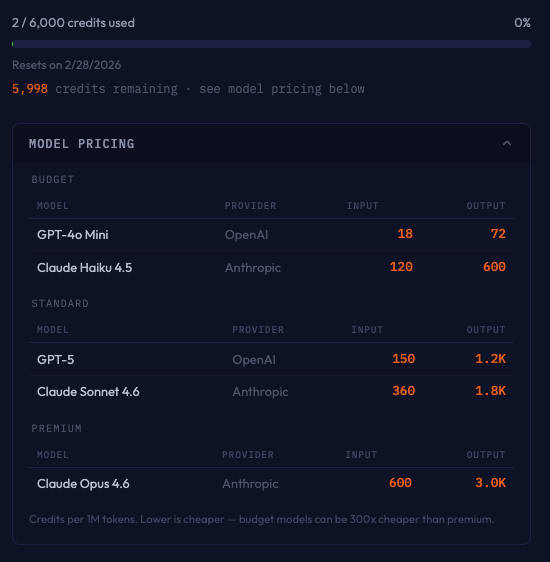
When your credits hit zero, AI responses pause until your next billing cycle or until you purchase additional credits. Your VPS and all data remain intact — you just can't send new AI messages. You can buy credit packs from the dashboard at any time.
Monthly subscription credits reset each billing cycle and do not roll over. However, credit packs purchased separately never expire and carry over indefinitely.
Yes. Credit packs are available from your dashboard — 1,000 credits for $12, 3,000 for $36, or 5,000 for $60. These are one-time purchases that never expire.
Yes. You can change your plan at any time from the dashboard. Upgrades take effect immediately with prorated billing. Downgrades apply at the start of your next billing cycle.
Go to your dashboard, open your subscription settings, and click Cancel. Your service continues until the end of your current billing period. For VPS plans, your server is terminated at the end of the period — make sure to back up any important files.
Refund requests are reviewed on a case-by-case basis. If you're not satisfied, contact us and we'll do our best to make it right. Extra credit pack purchases are non-refundable.
The Bring Your Own plan ($15/mo) gives you the same dedicated server, Cloudflare security, and auto-updates as our managed plans — but AI access is not included. You connect your own API keys or existing AI subscriptions (like Claude Pro/Max or ChatGPT Plus) to communicate with AI models. You pay your AI providers directly — Ekuri only charges for the infrastructure.
Included ($15/mo): Dedicated Hetzner VPS, Cloudflare Tunnel (HTTPS), your-name.ekuri.ai subdomain, auto-updates, health monitoring, OpenClaw gateway, native macOS & iOS apps.
Not included: AI model access. You must bring your own API keys or subscriptions from providers like Anthropic, OpenAI, or others. Without a connected provider, the server runs but cannot respond to AI requests.
Claude (Anthropic): Run claude setup-token in your terminal (requires Claude Code installed + active Claude Pro or Max subscription). Paste the token in your dashboard under "Connect Your AI".
ChatGPT (OpenAI): Click "Sign in with ChatGPT" in your dashboard. You'll be redirected to OpenAI to authorize. Paste the redirect URL back in the dashboard to complete the connection.
You can connect both providers simultaneously and switch between models freely.
Yes. You can paste API keys from any supported provider (Anthropic, OpenAI, xAI, DeepSeek, and more) directly in the dashboard. API keys and subscription tokens can be used interchangeably — use whichever works for you.
Yes. You can have Anthropic and OpenAI (and others) connected simultaneously. The model selector in your dashboard will show all available models from your connected providers, and you can switch between them freely.
On the Bring Your Own plan, AI requests go directly from your server to your provider using your own keys. Ekuri does not meter or limit your usage — you're only limited by your provider's own quotas. Track your spending on your provider's dashboard (e.g. console.anthropic.com or platform.openai.com/usage).
Yes. Cancel your current Bring Your Own subscription and subscribe to a managed plan (Starter, Pro, or Max). Your server stays the same — it will switch to using Ekuri-provided credits for AI access instead of your own keys.
Prefer a proper walkthrough instead of the short FAQ version? Use the full setup guides:
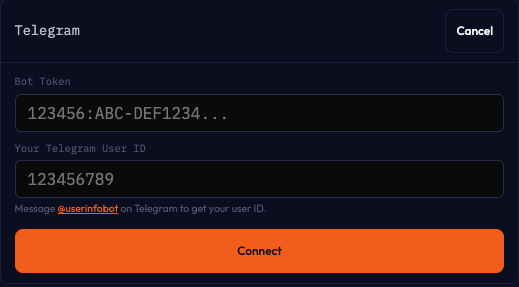
From your dashboard, find the Channels section and click "Connect" next to Telegram. You'll need two things:
1. Bot Token — Create a bot via @BotFather on Telegram and copy the token.
2. Your Telegram User ID — Message @userinfobot on Telegram to get your numeric user ID.
Enter both in the dashboard and click Connect. The gateway restarts and your bot goes live within seconds.
Read the full Telegram setup guide →
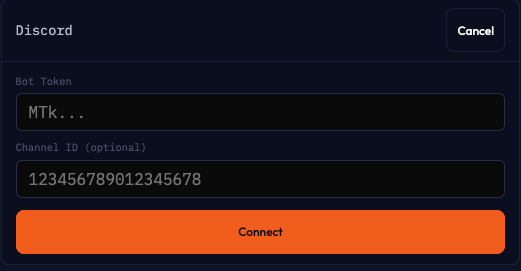
From your dashboard, click "Connect" next to Discord in the Channels section. Enter your Discord bot token and optionally a channel ID to restrict the bot to a specific channel. Create a bot at the Discord Developer Portal, add it to your server, and you're set.
Read the full Discord setup guide →
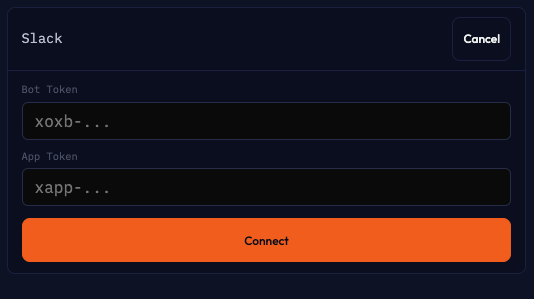
From your dashboard, click "Connect" next to Slack in the Channels section. You'll need a Bot Token (xoxb-...) and an App Token (xapp-...) from your Slack app settings. Create a Slack app at api.slack.com with Socket Mode enabled.
Read the full Slack setup guide →
Yes. You can have Telegram, the web console, and the native Mac and iPhone apps connected simultaneously. Conversations sync across channels, so you can start a chat on Telegram and continue it on the web or mobile.
Yes. From your dashboard, click "Add Custom Domain" and enter your domain (e.g. ai.mycompany.com). You'll be shown a CNAME record to add at your DNS provider. Once DNS propagates, click "Verify & Activate" and your VPS will be accessible at your custom domain. Your custom domain simply points to your VPS subdomain — all traffic still flows securely through Cloudflare Tunnel.
Cloudflare provides our zero-exposed-ports security model. All traffic to your VPS goes through a Cloudflare Tunnel, which means your server's IP address is never exposed to the internet. This is what kept Ekuri users safe when 15,200 other OpenClaw instances were found exposed.
Add a CNAME record at your DNS provider (Cloudflare, Namecheap, GoDaddy, etc.) pointing your domain to your Ekuri subdomain (e.g. yourname.ekuri.ai). You don't need to move your entire DNS to Cloudflare — just add the single CNAME record. The dashboard shows the exact record to add.
Your live conversations and workspace files live on your dedicated VPS. Encrypted backups and retention-controlled copies may also exist in Ekuri-managed storage so backup, restore, export, and deletion features work. We never train AI models on your data or share message content with third parties. On managed plans, API requests go through our proxy for credit metering, but we record usage metadata such as model and token counts — not message content. On Bring Your Own, requests go directly from your VPS to your provider. See our security page and disclosure policy for details.
Every VPS is hardened automatically: the OpenClaw gateway binds to localhost only, all external access goes through a Cloudflare Tunnel (zero exposed ports), authentication secrets are crypto-random and protected server-side with encryption or hashing depending on the path, and the server receives automatic security updates.
Cloudflare Access is a Zero Trust authentication layer that protects your VPS web console. When you visit your subdomain, you verify your email via a one-time code. Sessions last 30 days. This ensures only you can access your OpenClaw instance, even though it's reachable via a public URL.
Yes, completely. Every user gets their own dedicated Hetzner server. There is no shared infrastructure between users — your files, conversations, and API keys are yours alone.
First, try restarting the gateway from your dashboard. This resolves most issues within 30 seconds. If the problem persists, our monitoring system will automatically attempt a restart. If the server remains unhealthy for more than a few minutes, contact support — our team is alerted automatically.
Check your spam/junk folder first. Verification emails come from Cloudflare Access (for VPS login) or from ekuri.ai (for account login). If you still don't receive it after a minute, try again. If the problem persists, try signing in with Google or Apple instead, or contact us.
This usually means your instance needs a restart. Go to your dashboard and restart the gateway. If your credits are exhausted, the bot will stop responding until credits are replenished. Check your credit balance in the dashboard.
Try a hard refresh (Ctrl+Shift+R or Cmd+Shift+R). If that doesn't work, clear your browser cache for ekuri.ai and try again. The dashboard works best in Chrome, Firefox, Safari, or Edge. If the issue persists, let us know what browser and device you're using.
No problem! Head to our contact page and send us a message. We read every message and typically respond within 24 hours. You can also reach us at [email protected] or on X/Twitter.
No results found.
Try a different search term, or contact us for help.
Still have questions?
We're here to help. Send us a message and we'll get back to you within 24 hours.
Contact Support