How to Connect Telegram to Ekuri
What You Need
- An active Ekuri VPS (deploy one from your dashboard)
- A Telegram account
By the end of this guide, you'll be chatting with your Ekuri AI assistant directly in Telegram.
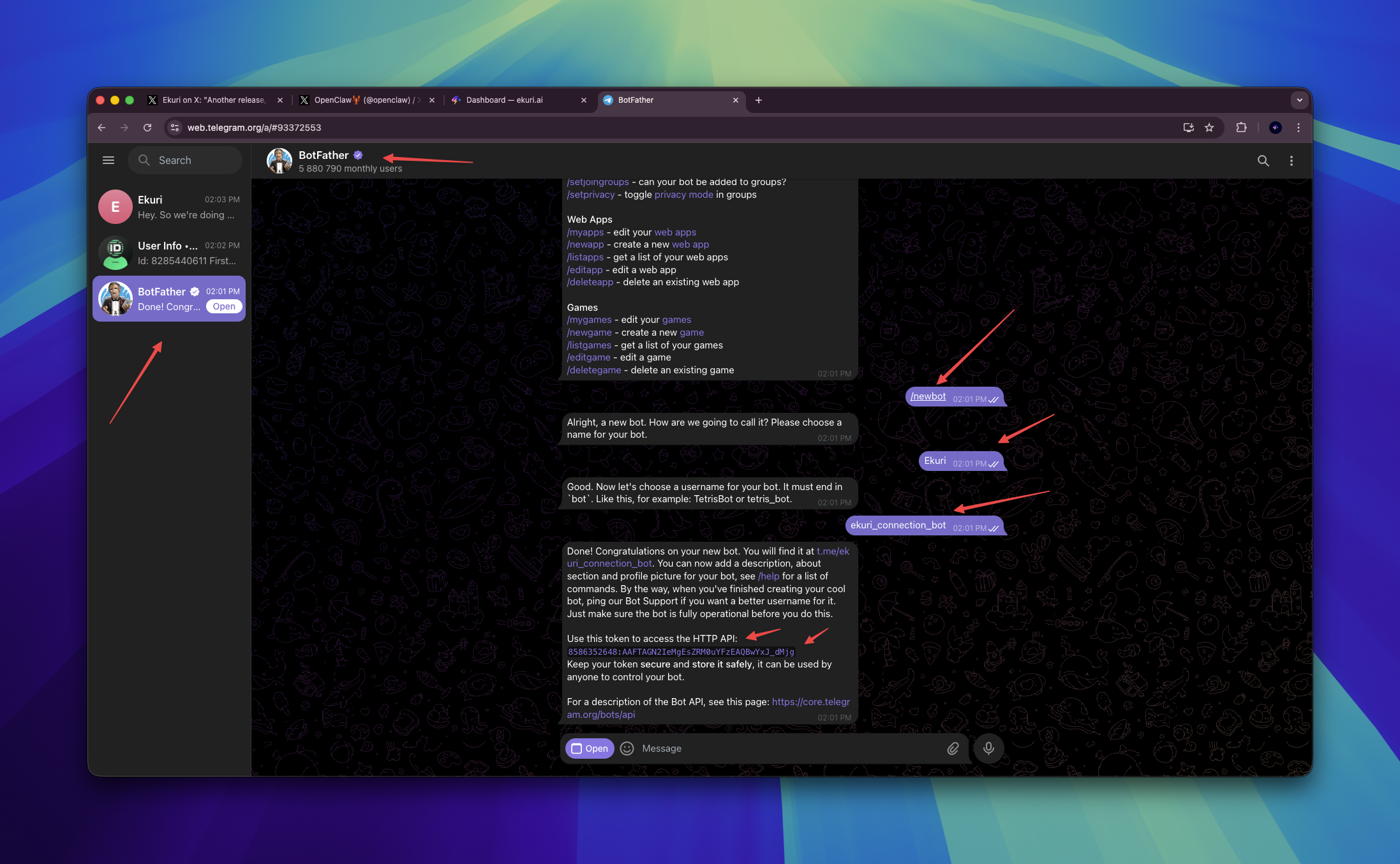
Step 1 — Create a Bot with BotFather
- Open Telegram and search for @BotFather
- Send
/newbot - Choose a name for your bot (e.g.
Ekuri) - Choose a username — it must end in
bot(e.g.ekuri_bot) - Copy the token BotFather gives you — this is your Bot Token
Step 2 — Get Your Telegram User ID
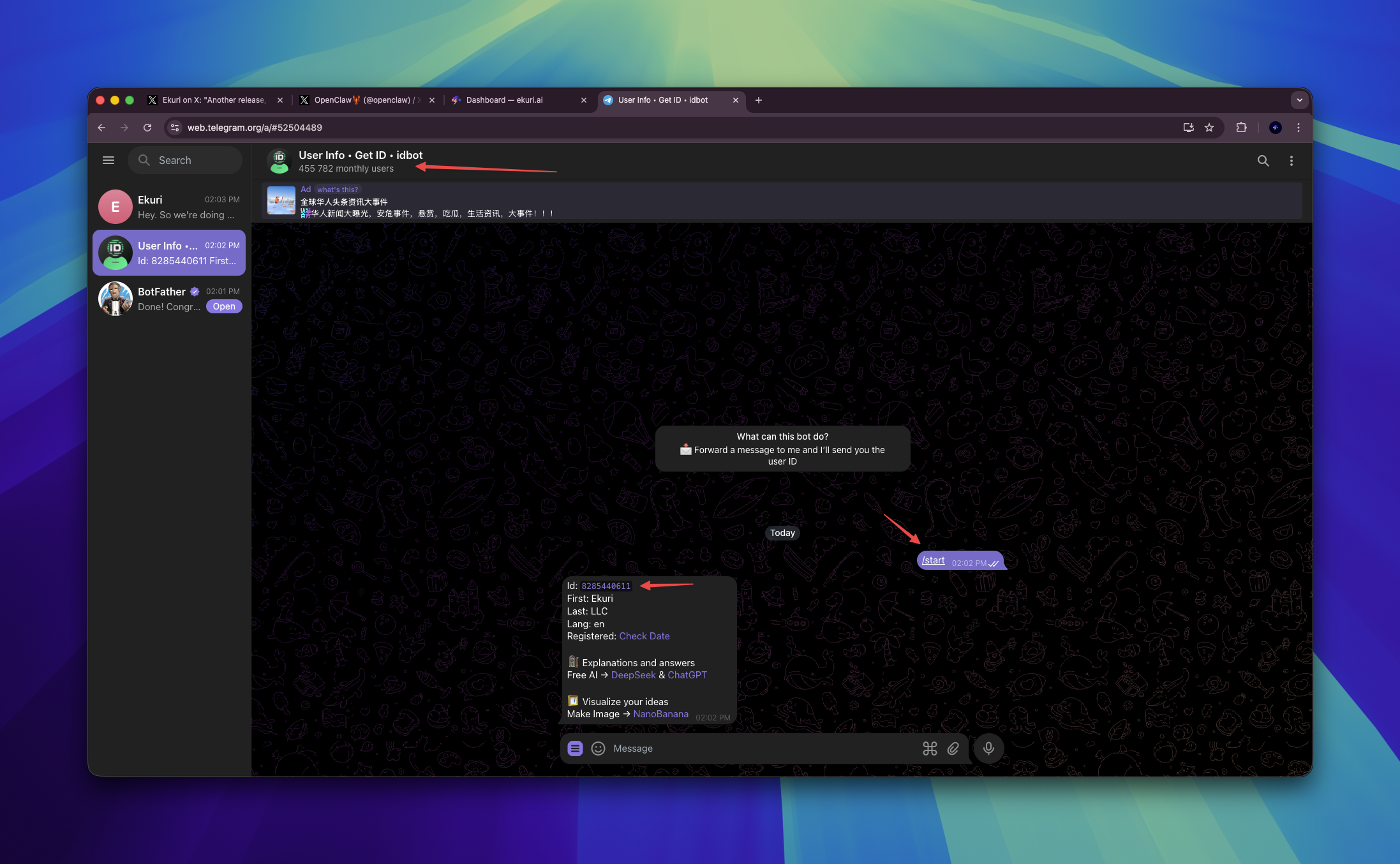
Your User ID tells Ekuri who is allowed to talk to the bot. Only your messages will be processed.
- Search for @userinfobot on Telegram
- Send any message (e.g.
hello) - Copy the number next to
Id— this is your Telegram User ID
Step 3 — Connect in Ekuri Dashboard
- Open your Ekuri dashboard
- Find the Telegram section under Connections
- Paste your Bot Token from Step 1
- Paste your Telegram User ID from Step 2
- Click Connect
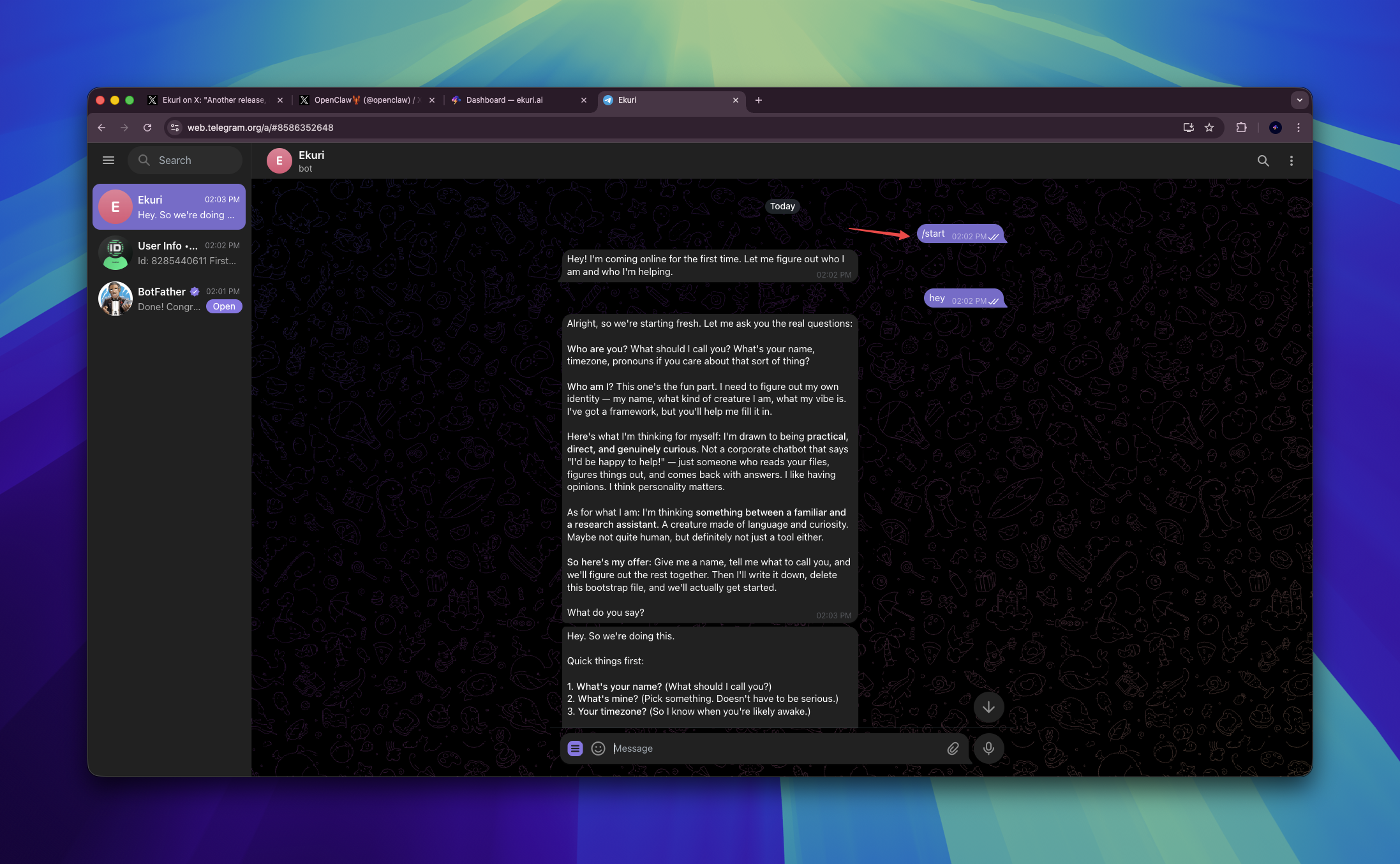
The gateway will restart automatically. After a few seconds, open Telegram and send a message to your bot — your Ekuri AI assistant should respond.
Troubleshooting
Bot doesn't respond? Make sure you pasted the correct Bot Token and User ID. The User ID must be a number (not your username).
"Pairing" message instead of a response? Ekuri uses DM pairing for Telegram — only the User ID you entered is authorized. If you're messaging from a different account, it won't respond.
Need to change the User ID? Disconnect Telegram from the dashboard and reconnect with the correct User ID.