How to Connect Slack to Ekuri
What You Need
- An active Ekuri VPS (deploy one from your dashboard)
- A Slack workspace where you have permission to install apps
By the end of this guide, you'll be chatting with your Ekuri AI assistant directly in Slack — via DMs or @mentions in any channel.
Step 1 — Create a Slack App
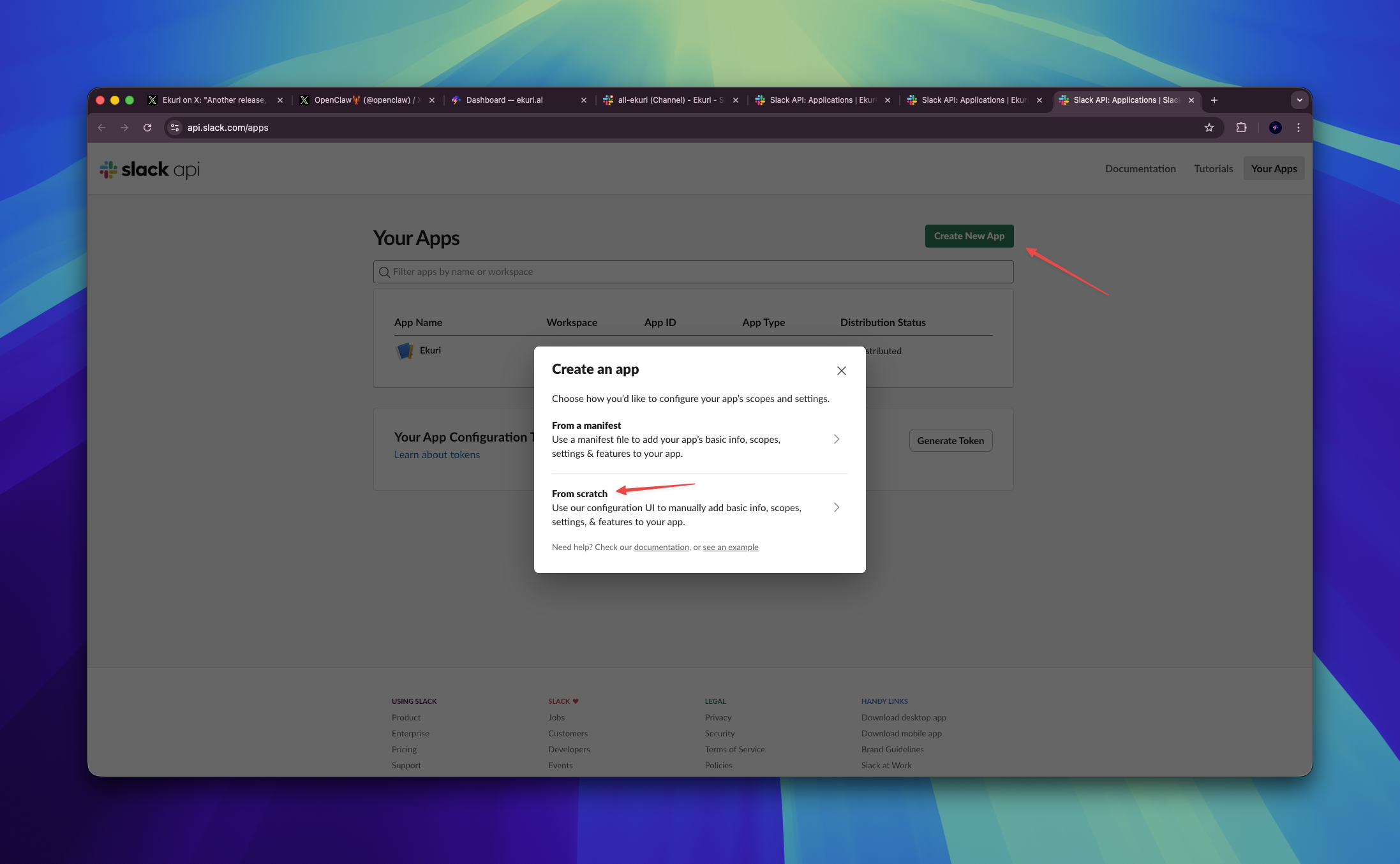
- Go to api.slack.com/apps
- Click Create New App
- Choose From scratch
- Enter an app name (e.g.
Ekuri) and select your workspace - Click Create App
Step 2 — Enable Socket Mode
Socket Mode lets your bot receive messages in real time without exposing a public URL.
- In the left sidebar, click Socket Mode
- Toggle Enable Socket Mode to ON
- You'll be prompted to create an App-Level Token:
- Name it
ekuri - Add the scope
connections:write - Click Generate
- Name it
- Copy the token that starts with
xapp-— this is your App Token
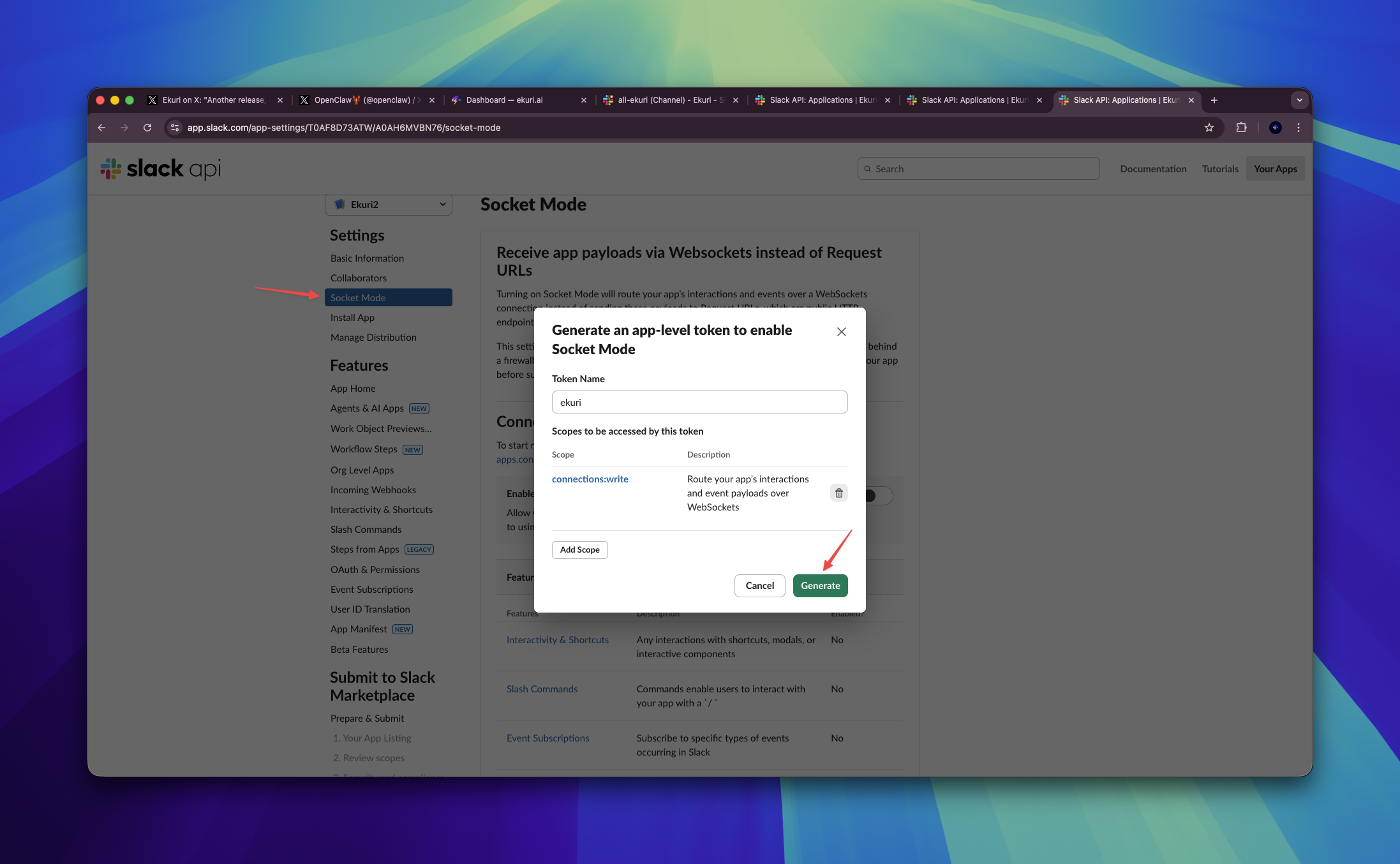
Keep this token handy — you'll need it in the final step.
Step 3 — Add Bot Permissions
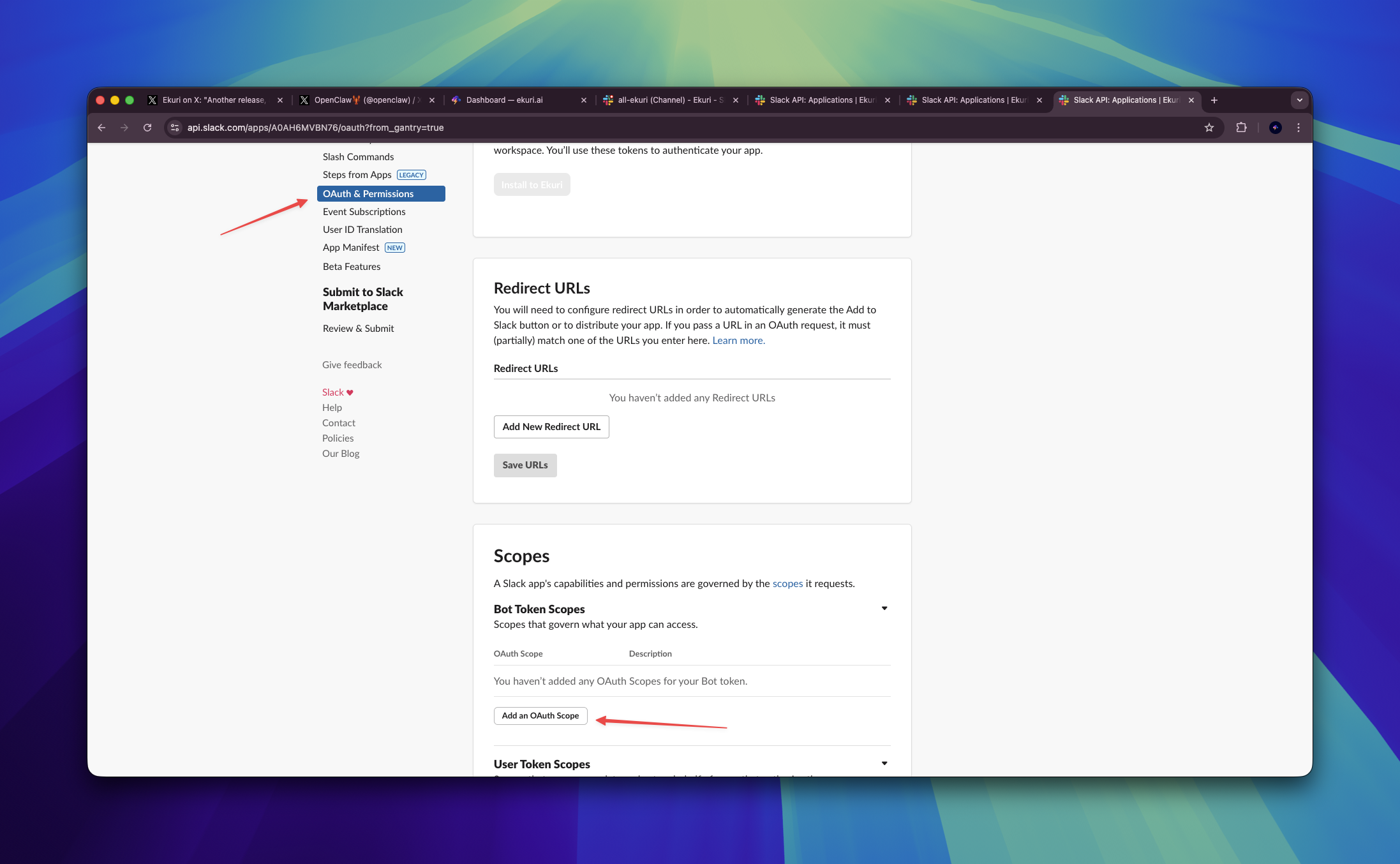
- In the left sidebar, click OAuth & Permissions
- Scroll down to Bot Token Scopes
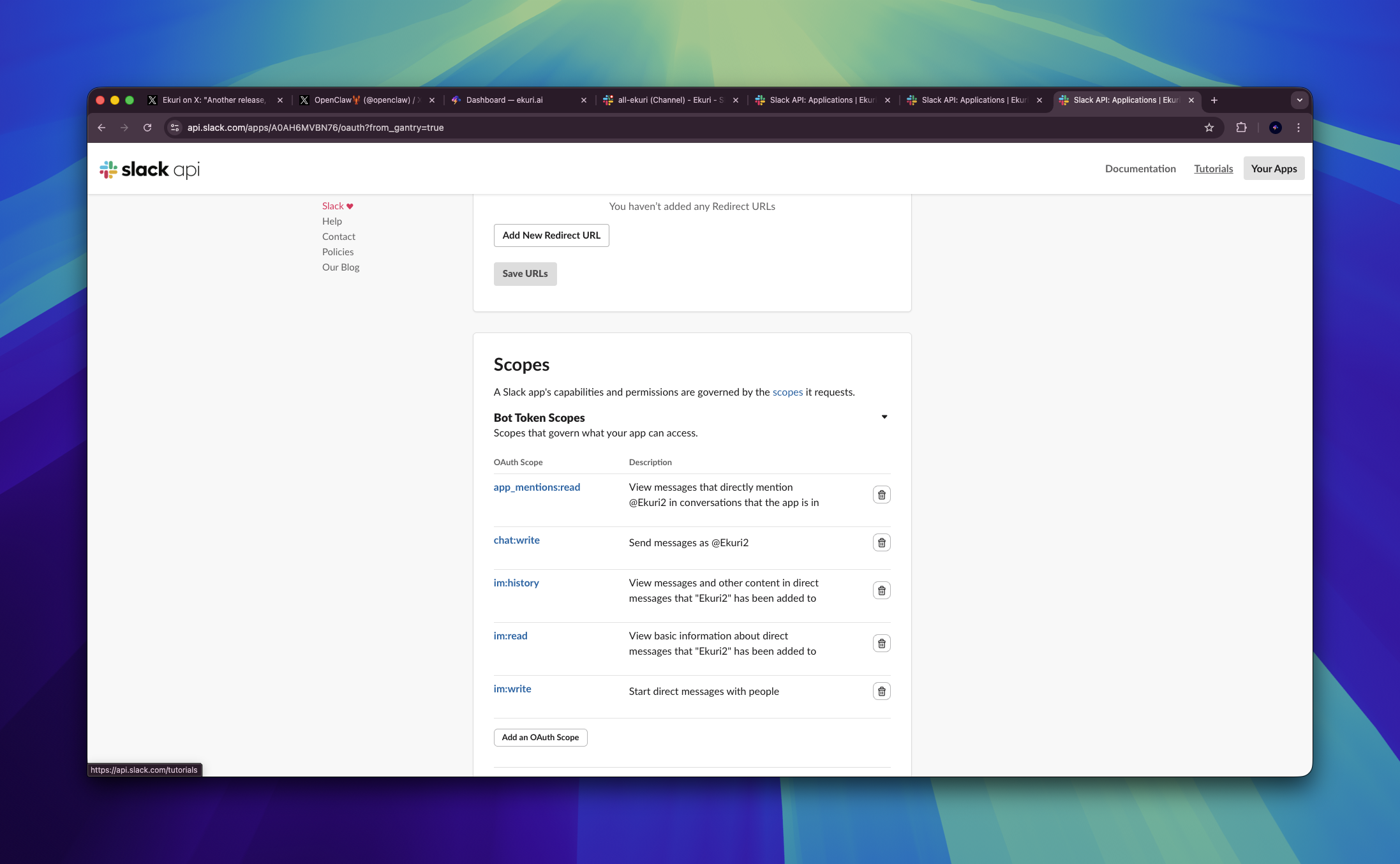
- Click Add an OAuth Scope and add each of these:
chat:write— lets the bot send messagesapp_mentions:read— lets the bot see when it's @mentionedim:history— lets the bot read DM historyim:read— lets the bot see DMsim:write— lets the bot send DMs
Once all five scopes are added, it should look like this:
Step 4 — Install to Your Workspace
- Scroll back up on the same OAuth & Permissions page
- Click Install to Workspace
- Review the permissions and click Allow
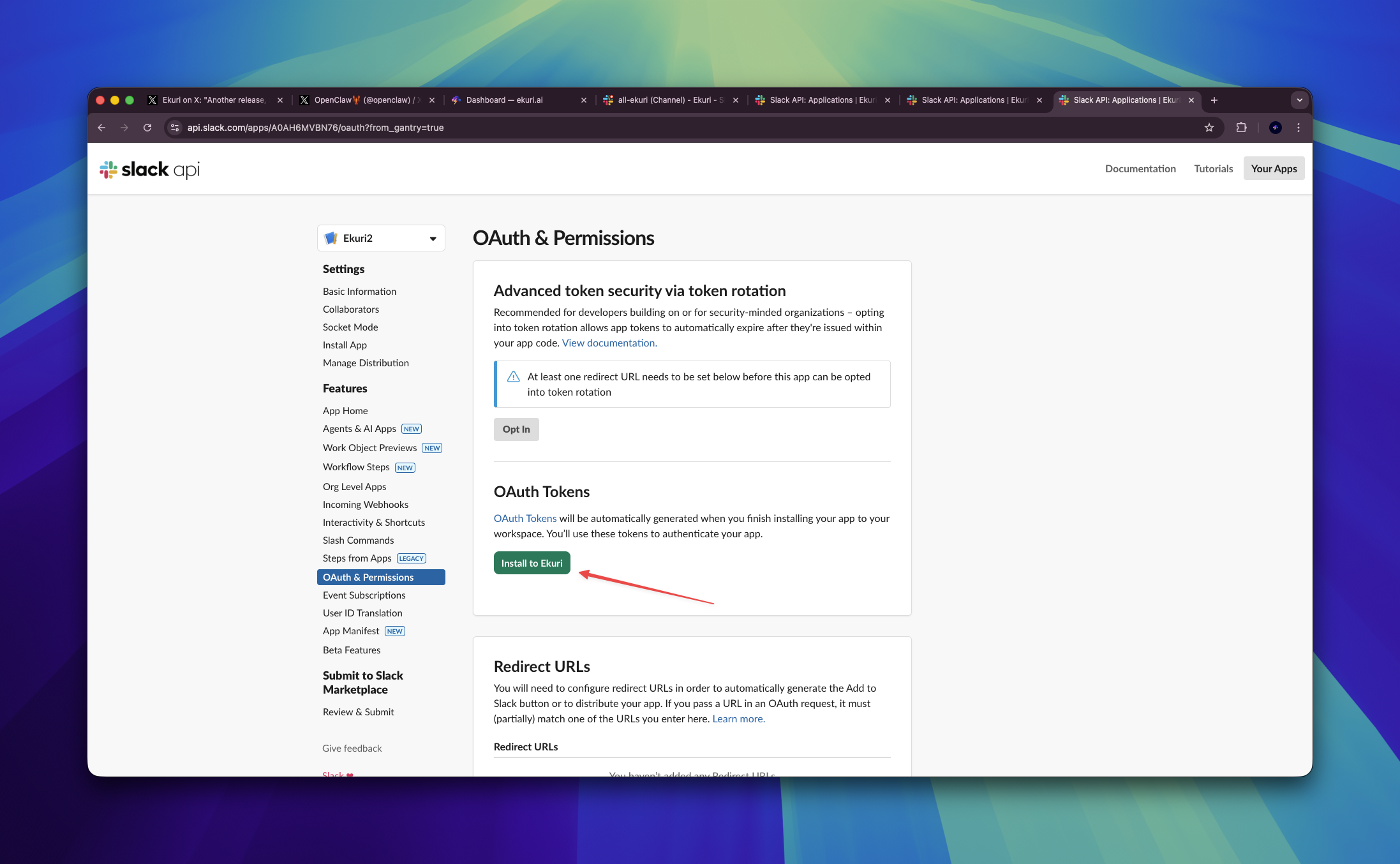
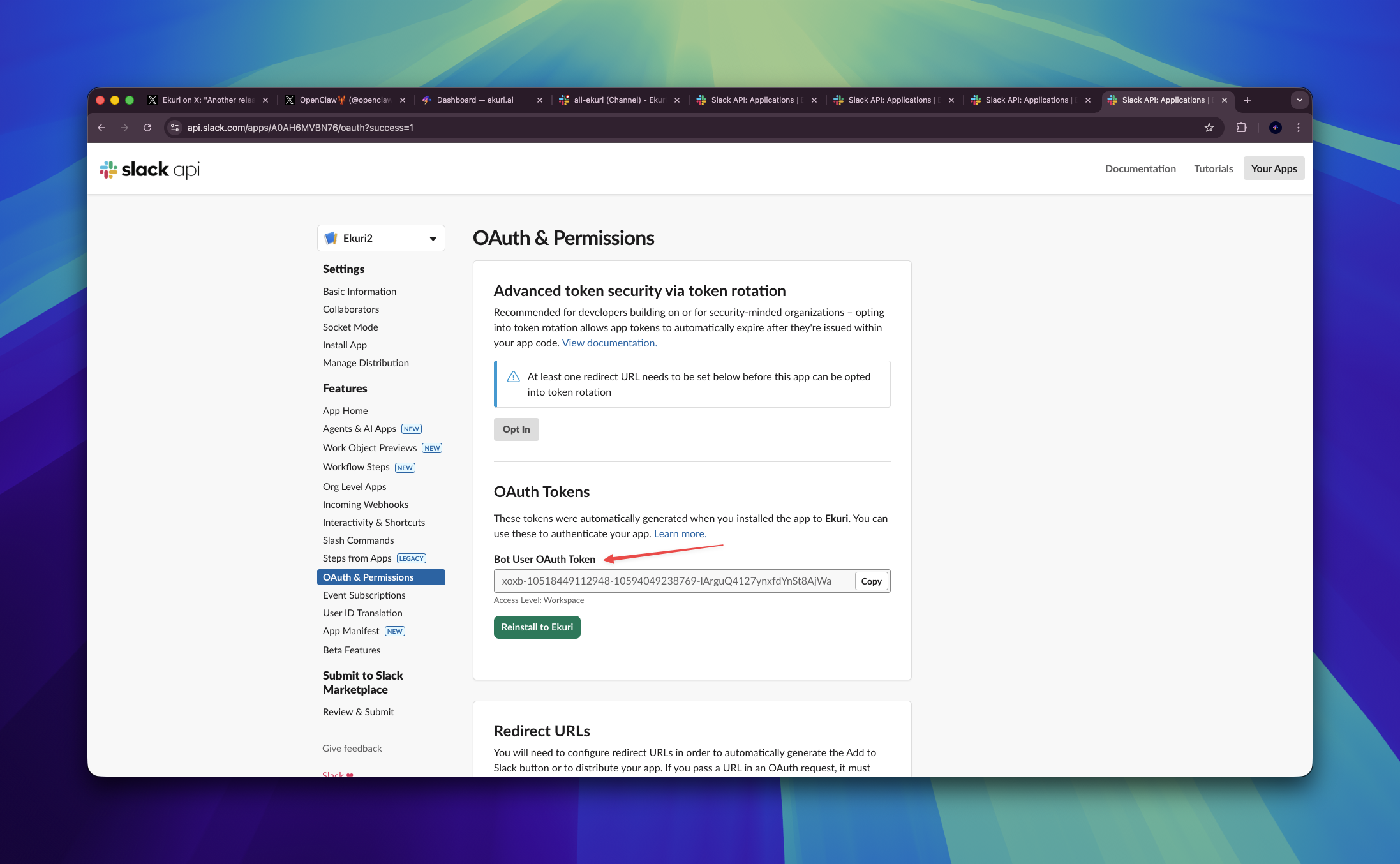
- Copy the Bot User OAuth Token that starts with
xoxb-— this is your Bot Token
Step 5 — Enable Events
This tells Slack to forward messages to your bot.
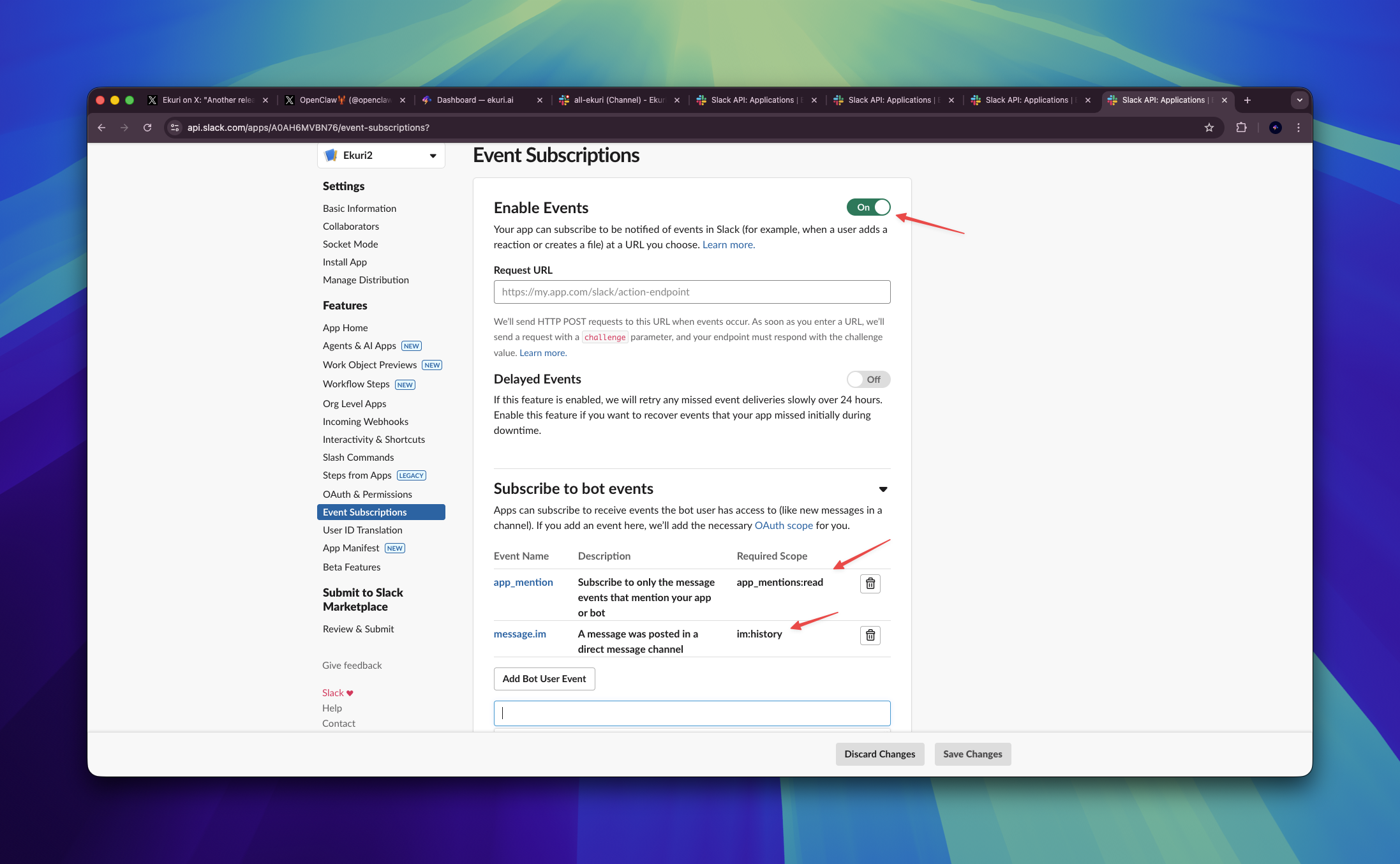
- In the left sidebar, click Event Subscriptions
- Toggle Enable Events to ON
- Expand Subscribe to bot events
- Click Add Bot User Event and add:
message.im— triggers when someone DMs the botapp_mention— triggers when someone @mentions the bot
- Click Save Changes
Step 6 — Connect in Ekuri Dashboard
- Open your Ekuri dashboard
- Find the Slack section under Connections
- Paste your two tokens:
- Bot Token: the
xoxb-...token from Step 4 - App Token: the
xapp-...token from Step 2
- Bot Token: the
- Click Connect
The gateway will restart automatically. After a few seconds, open Slack and send a message — your Ekuri AI assistant should respond.
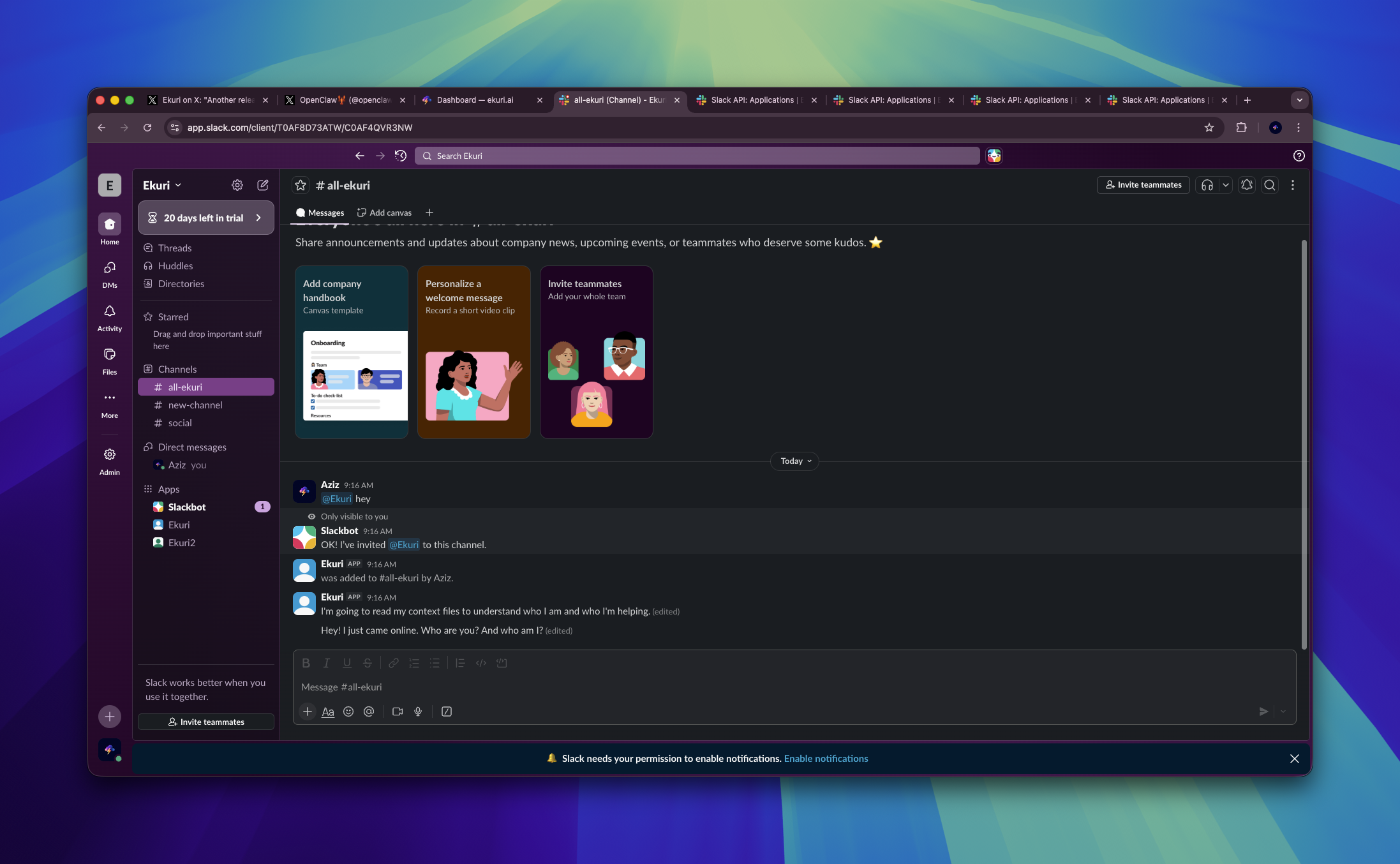
If your bot doesn't respond in a channel, make sure you've invited it first — type /invite @Ekuri in the channel. You can refer to our setup video above to see how it's done.
Troubleshooting
Bot doesn't respond to DMs?
Make sure you added message.im in Event Subscriptions (Step 5) and that Socket Mode is enabled (Step 2).
Bot doesn't respond to @mentions in channels?
Make sure you added app_mention in Event Subscriptions (Step 5). You also need to invite the bot to the channel first — type /invite @Ekuri in the channel.
"missing_scope" error? Go back to OAuth & Permissions and verify all 5 scopes from Step 3 are added. After adding scopes, you may need to reinstall the app (Step 4).