How to Connect Discord to Ekuri
What You Need
- An active Ekuri VPS (deploy one from your dashboard)
- A Discord server where you have admin permissions
By the end of this guide, you'll be chatting with your Ekuri AI assistant in Discord — via DMs or in a specific channel.
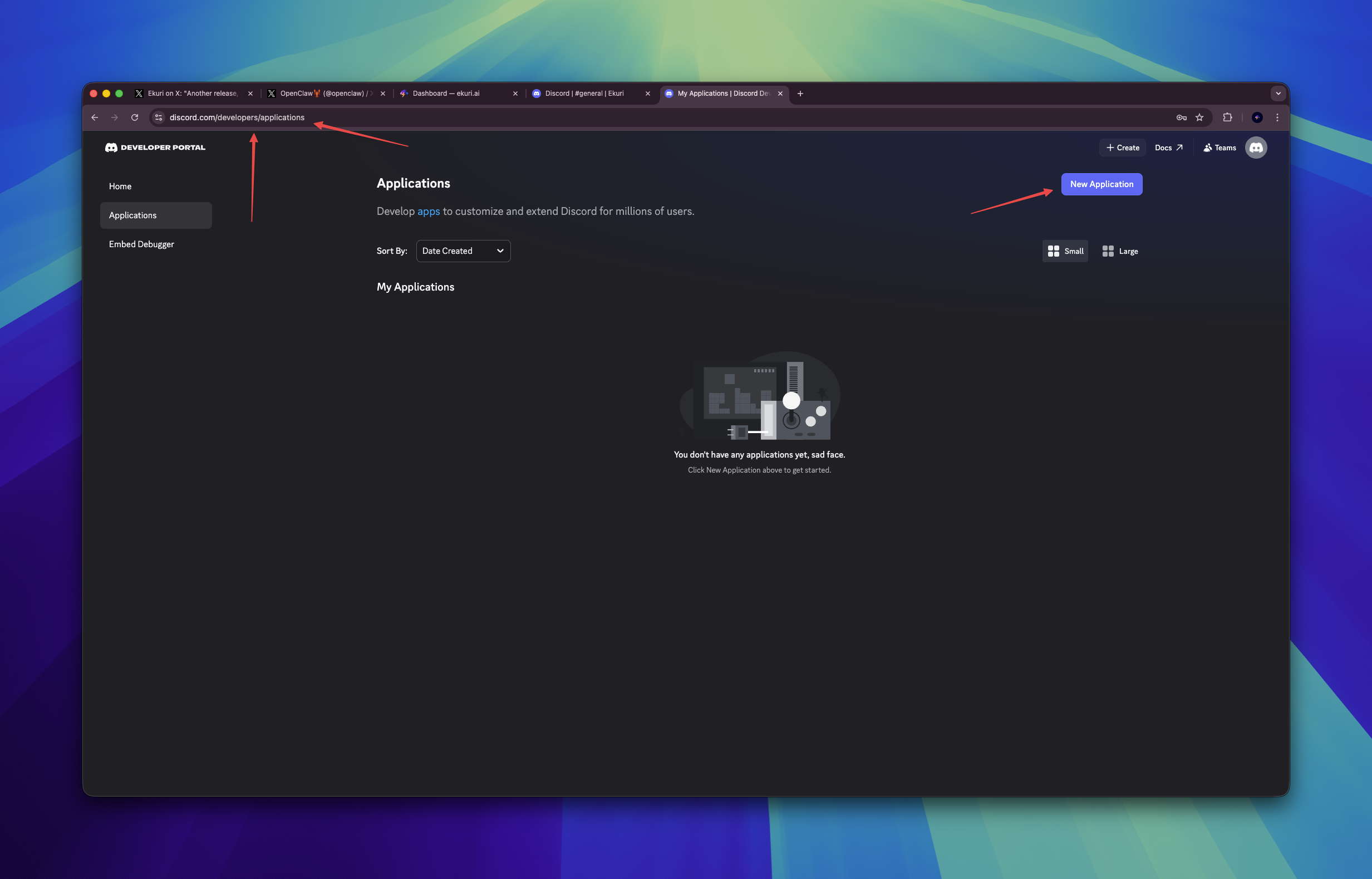
Step 1 — Create a Discord Application
- Go to discord.com/developers/applications
- Click New Application
- Enter a name (e.g.
Ekuri) and click Create
Step 2 — Get Your Bot Token
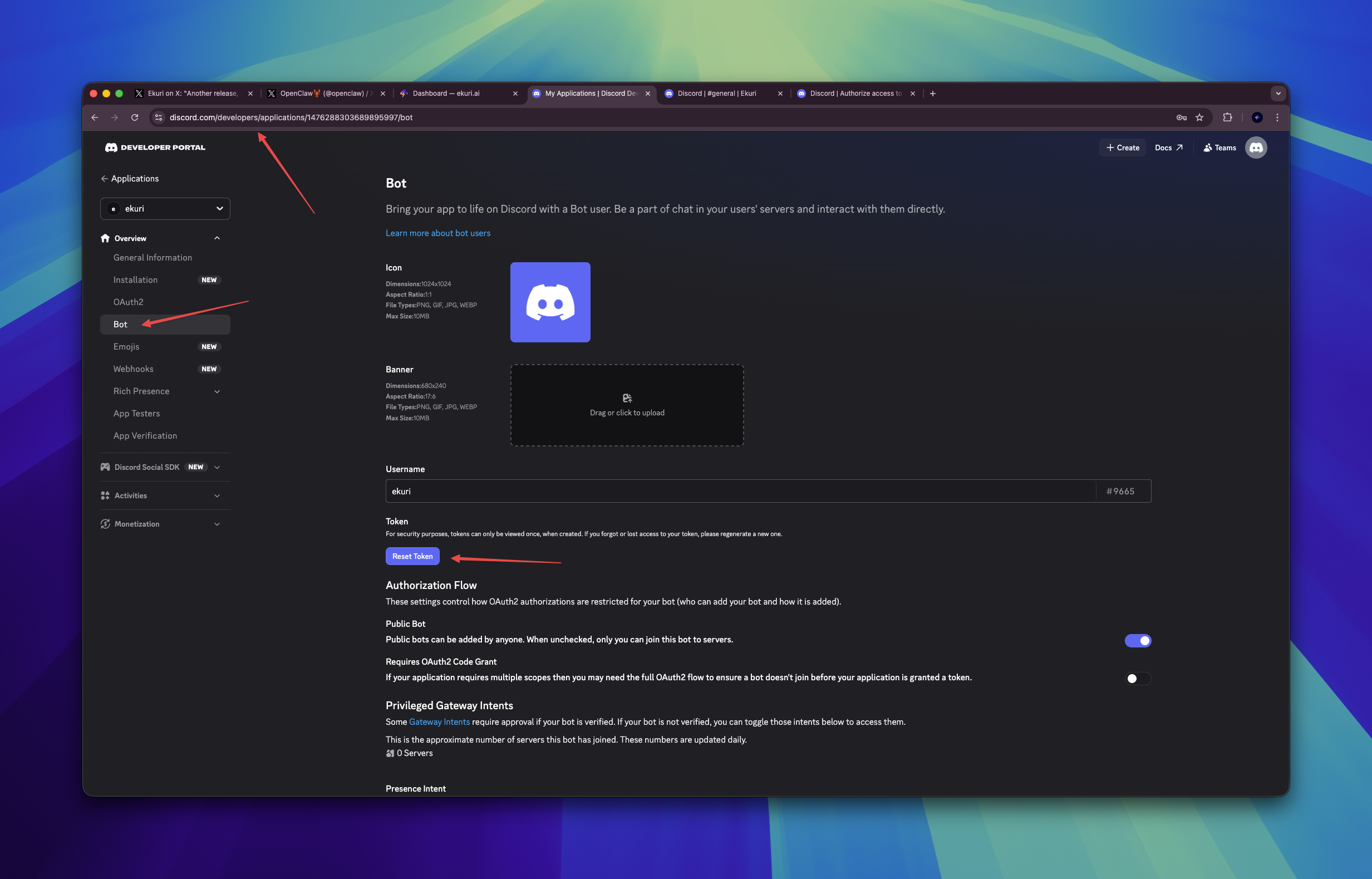
- In the left sidebar, click Bot
- Click Reset Token
- Confirm by clicking Yes, do it!
- Copy the token — this is your Bot Token
Save this token somewhere safe. Discord only shows it once — if you lose it, you'll need to reset it again.
Step 3 — Enable Message Content Intent
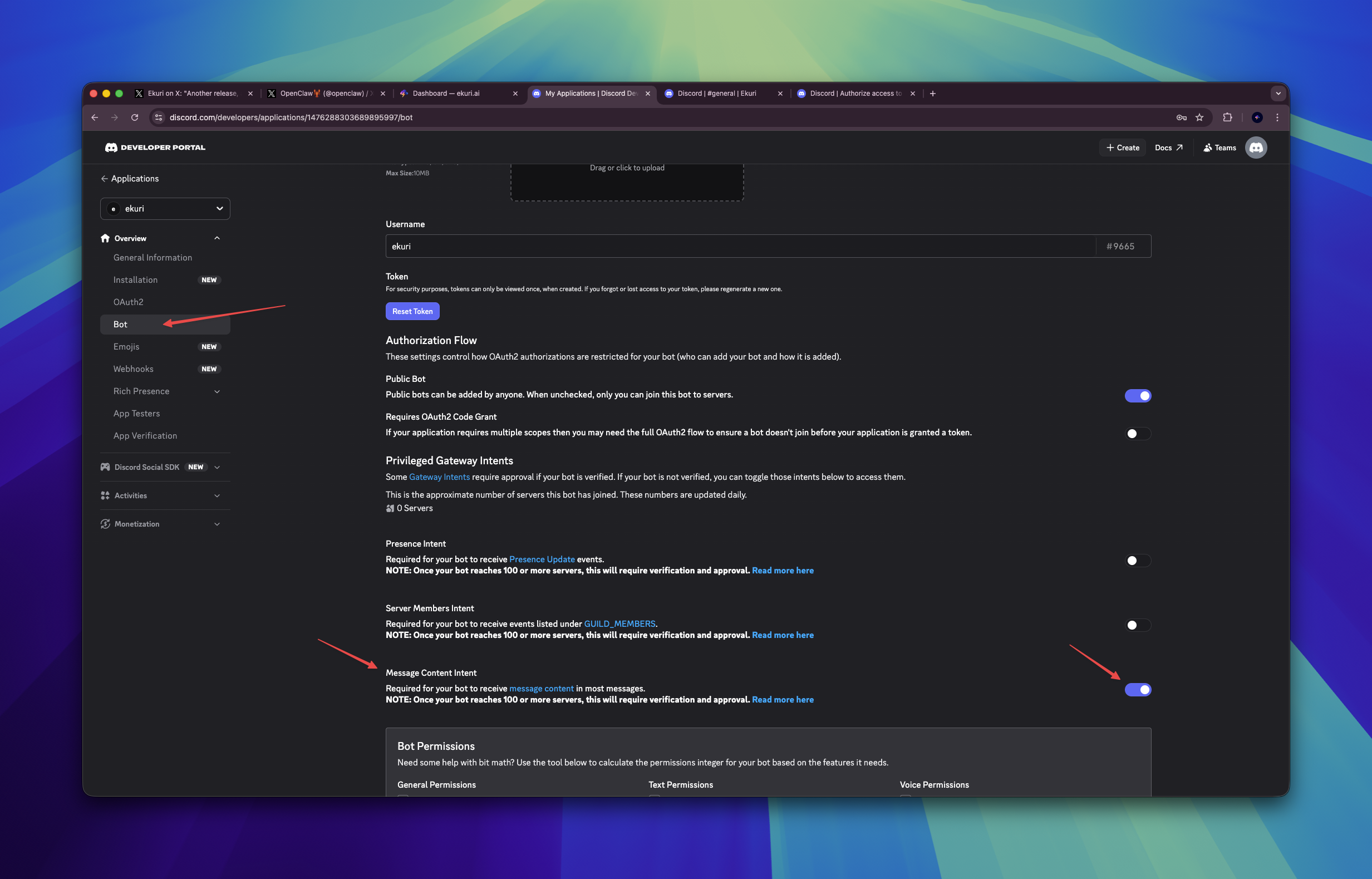
This lets your bot read message content (required for it to understand what people say).
- On the same Bot page, scroll down to Privileged Gateway Intents
- Toggle ON Message Content Intent
- Click Save Changes
Step 4 — Invite the Bot to Your Server
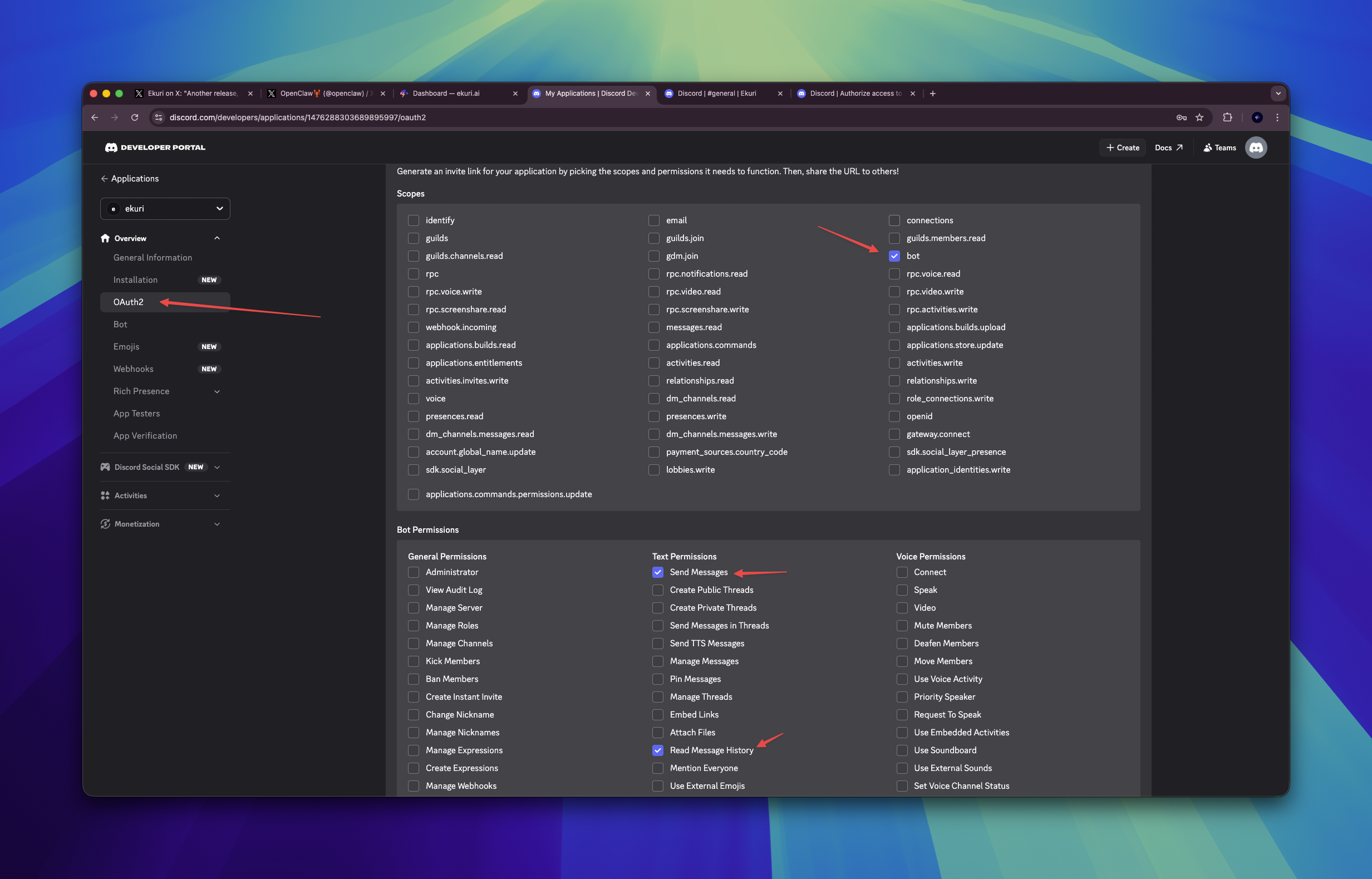
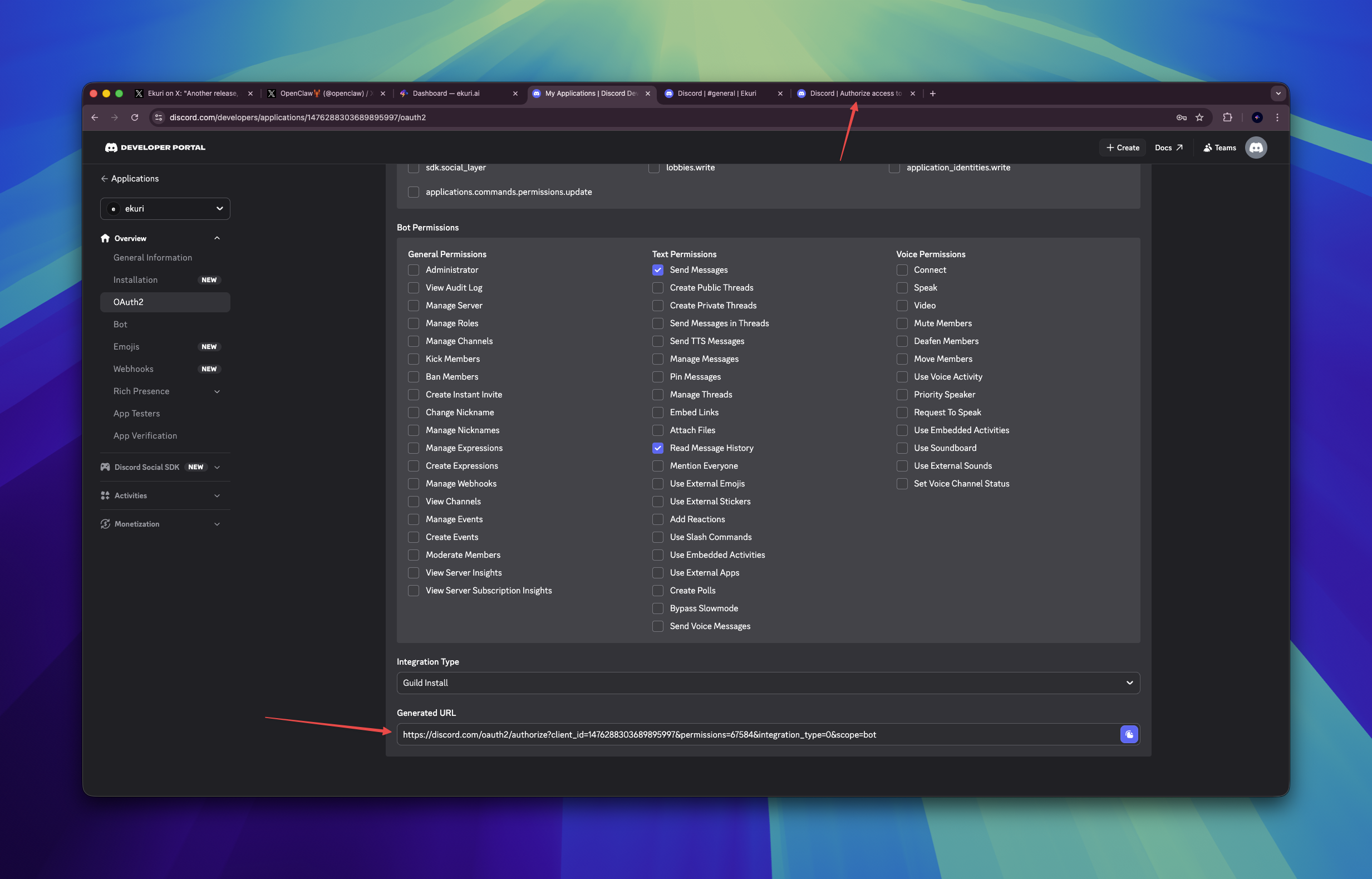
- In the left sidebar, click OAuth2
- Scroll down to OAuth2 URL Generator
- Under Scopes, check
bot - Under Bot Permissions, check:
Send MessagesRead Message History
- Copy the Generated URL at the bottom of the page
- Open it in your browser
- Select your server from the dropdown and click Authorize
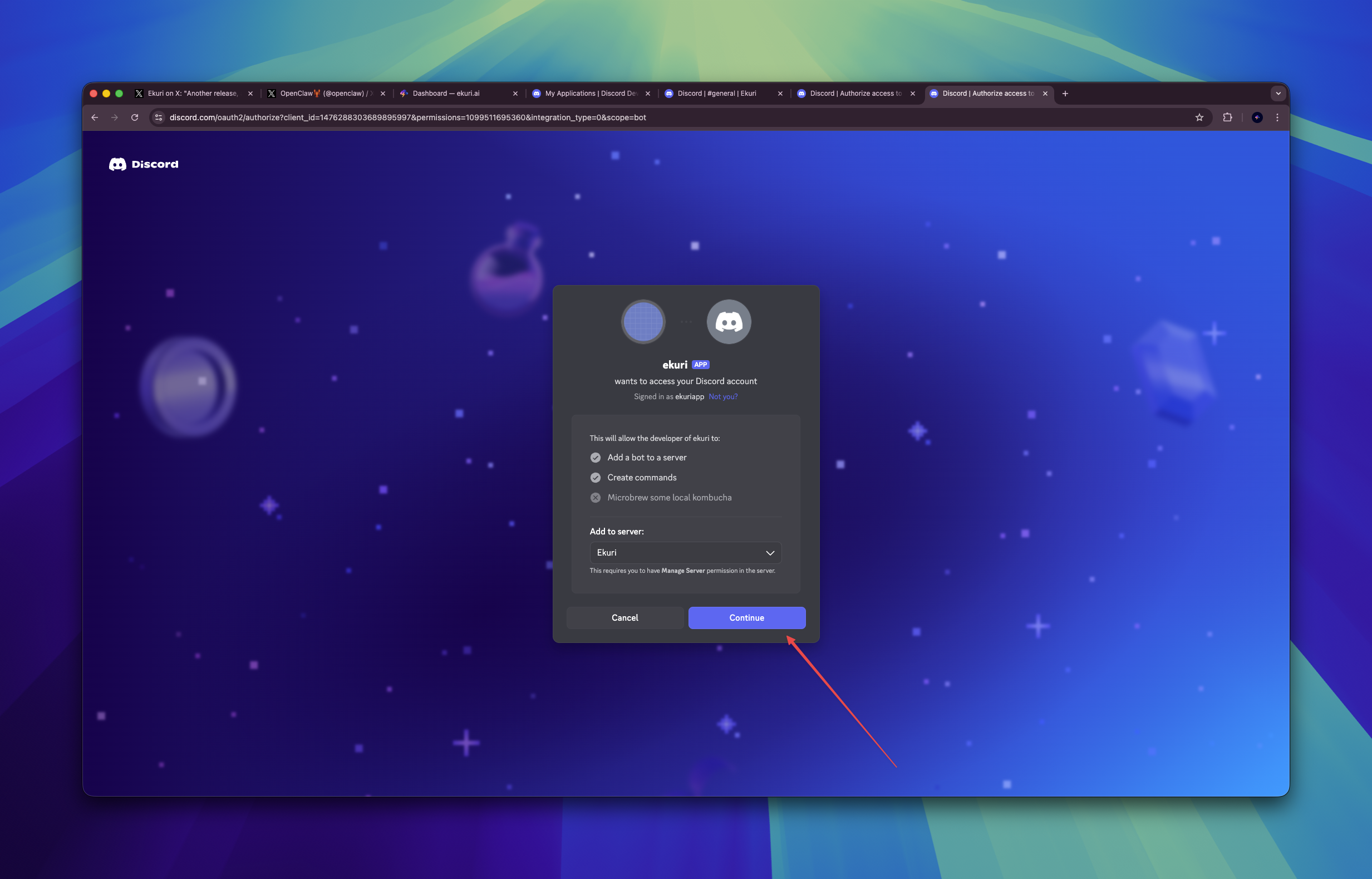
The bot should now appear in your server's member list.
Step 5 — Connect in Ekuri Dashboard
- Open your Ekuri dashboard
- Find the Discord section under Connections
- Paste your Bot Token from Step 2
- Click Connect
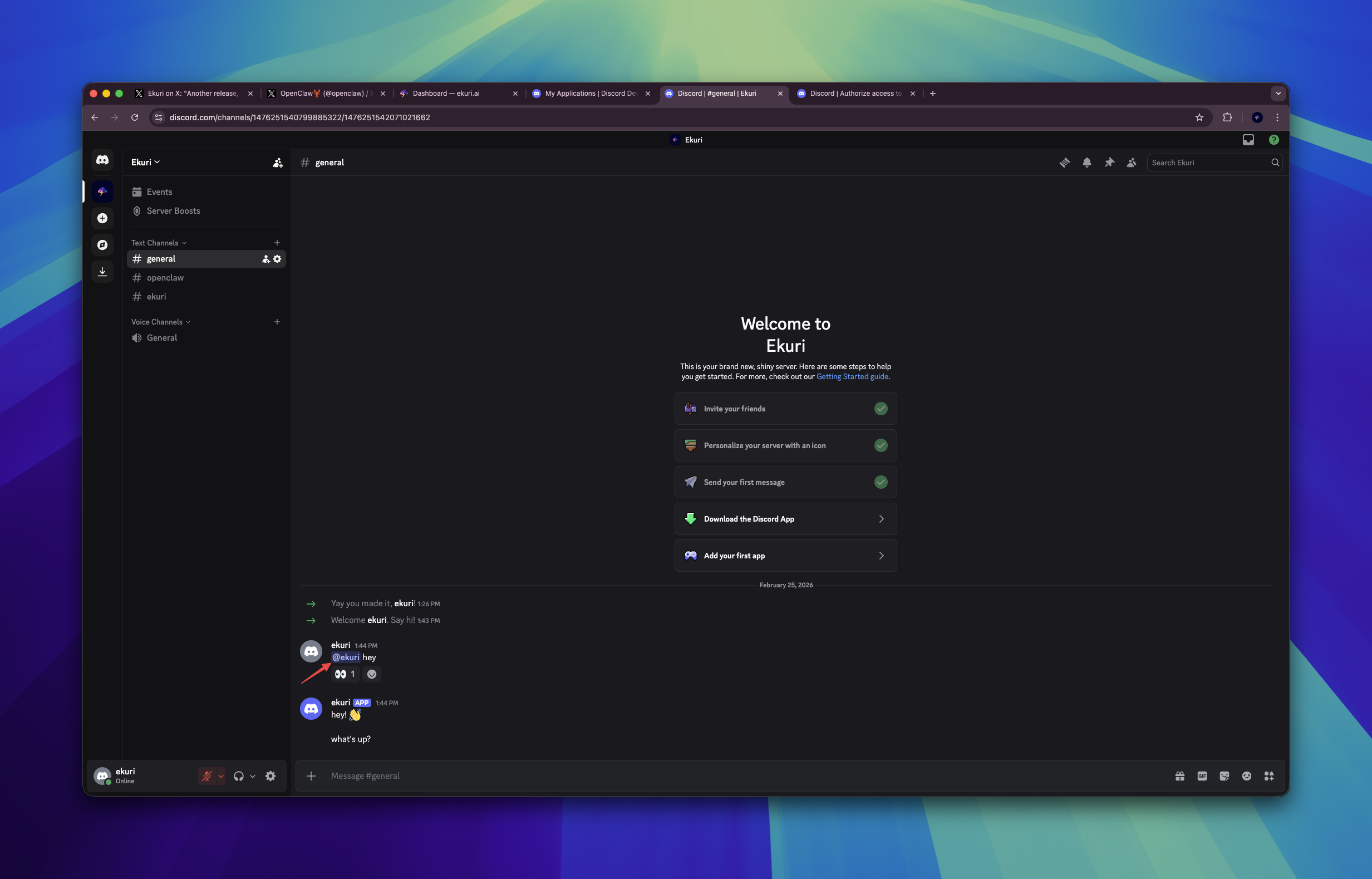
The gateway will restart automatically. After a few seconds, go to your Discord server and send a message — your Ekuri AI assistant should respond.
Troubleshooting
Bot is online but doesn't respond? Make sure Message Content Intent is enabled (Step 3). This is the most common issue.
Bot doesn't appear in the server? Make sure you completed the OAuth2 invite flow (Step 4) and selected the correct server.
Bot only responds in some channels? Check the bot's role permissions in your server settings. It needs "View Channel", "Send Messages", and "Read Message History" permissions for each channel.