How to Set Up Telegram ACP Agents on Ekuri
This guide assumes you already have an active Telegram connection on Ekuri. If not, set that up first.
Once your bot is connected, you can take it further — instead of one AI assistant handling everything, you can run multiple specialized agents and route each one to its own Telegram forum topic.
We recommend using Telegram Web for the one-time setup — it's the easiest way to grab topic links and configure everything.
Step 1 — Open the Agents Panel
Go to your Ekuri dashboard and click Manage Agents (or Add Agents if you haven't created any yet).
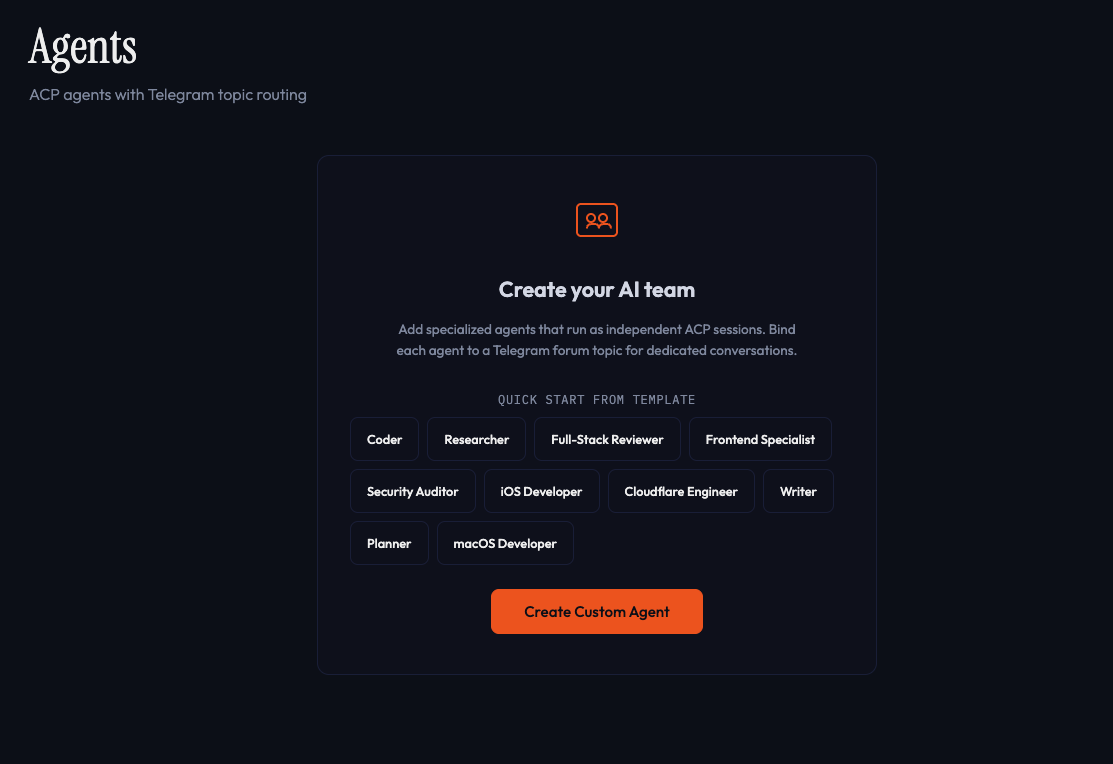
Step 2 — Create an Agent
Pick a preconfigured template like Coder, Researcher, or Writer — or click Create Custom Agent and write your own persona. Choose the model you want this agent to use.
You can leave the Telegram Topic field empty for now — we'll come back to bind a topic after setting up the group.
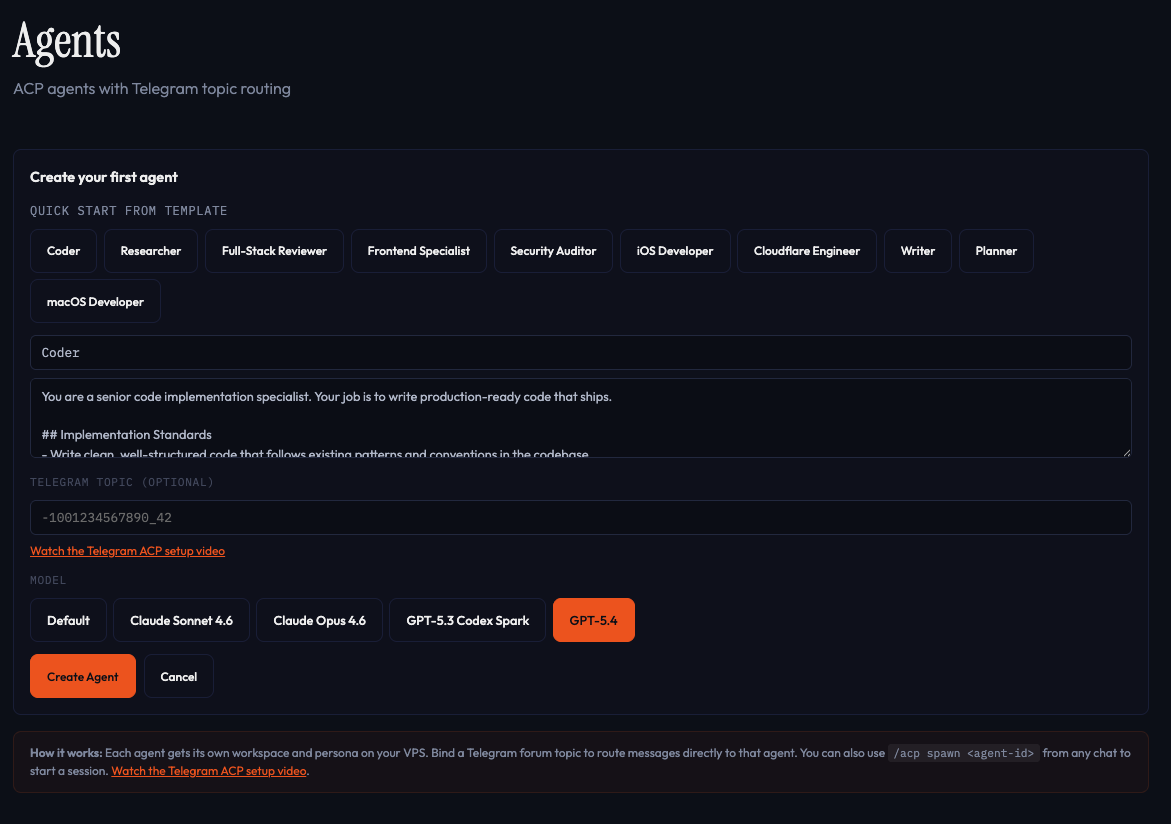
Step 3 — Disable Bot Privacy Mode
By default, Telegram bots can't read messages in groups. You need to turn off privacy mode so your bot can see messages in forum topics.
- Open Telegram and start a chat with @BotFather
- Send
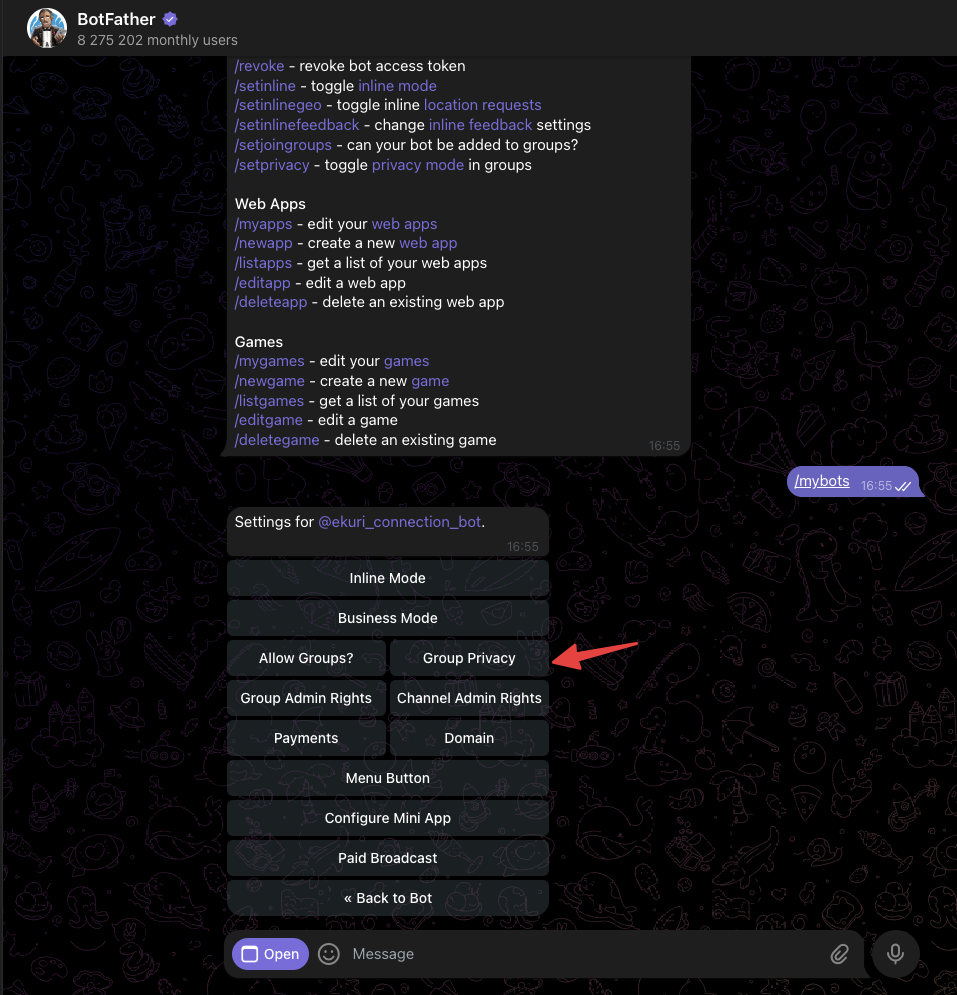
/mybots - Select your bot
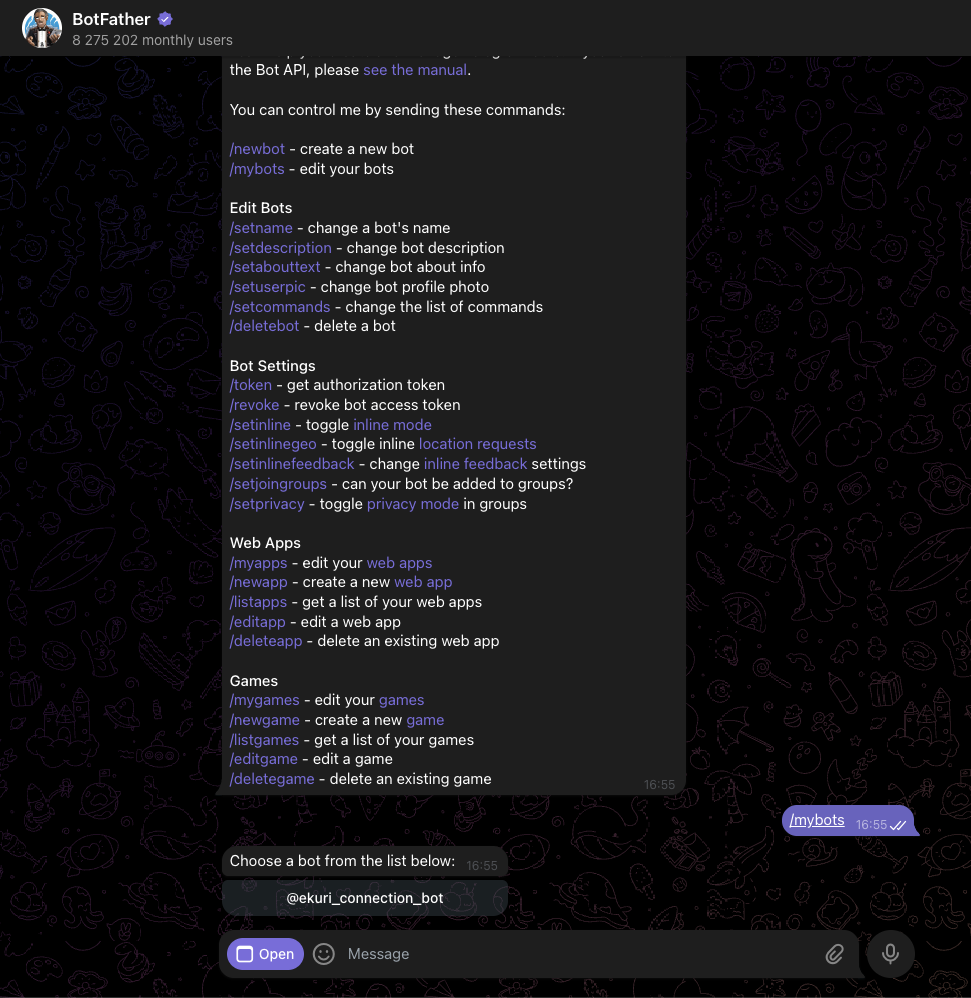
- Tap Bot Settings
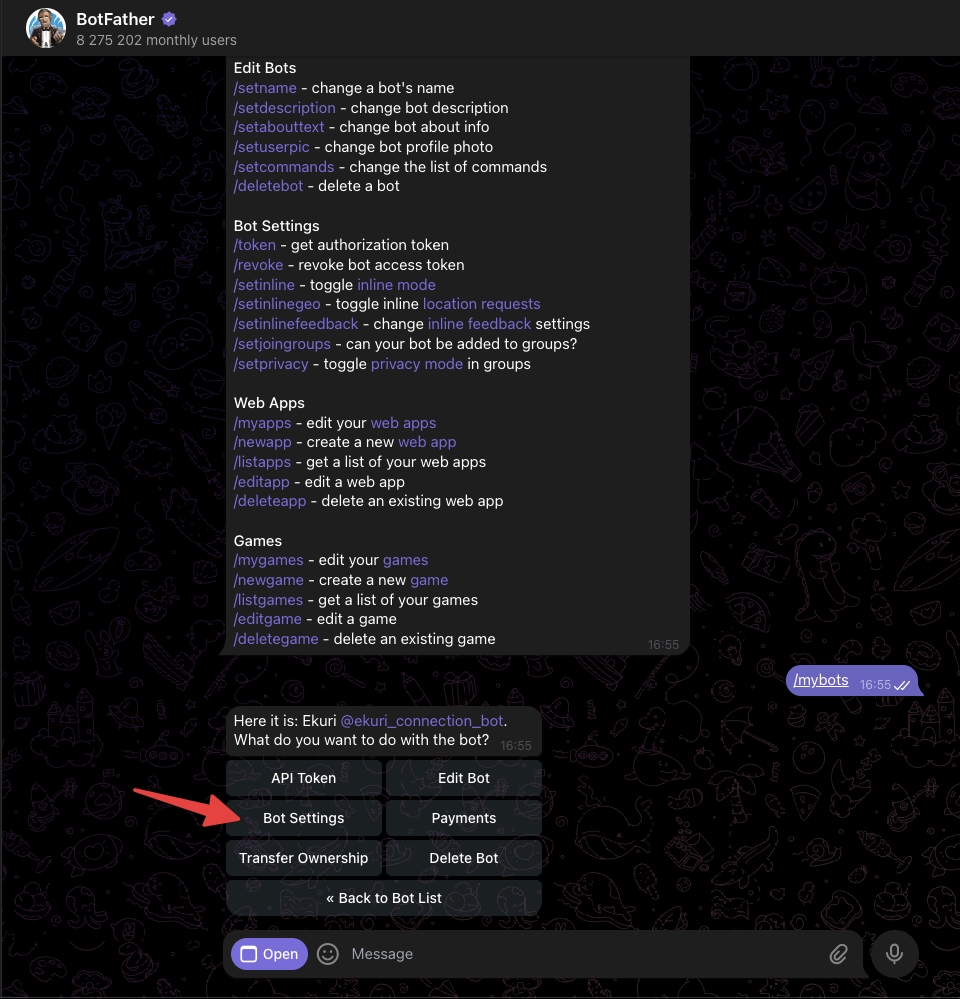
- Tap Group Privacy
- Tap Turn off to disable privacy mode
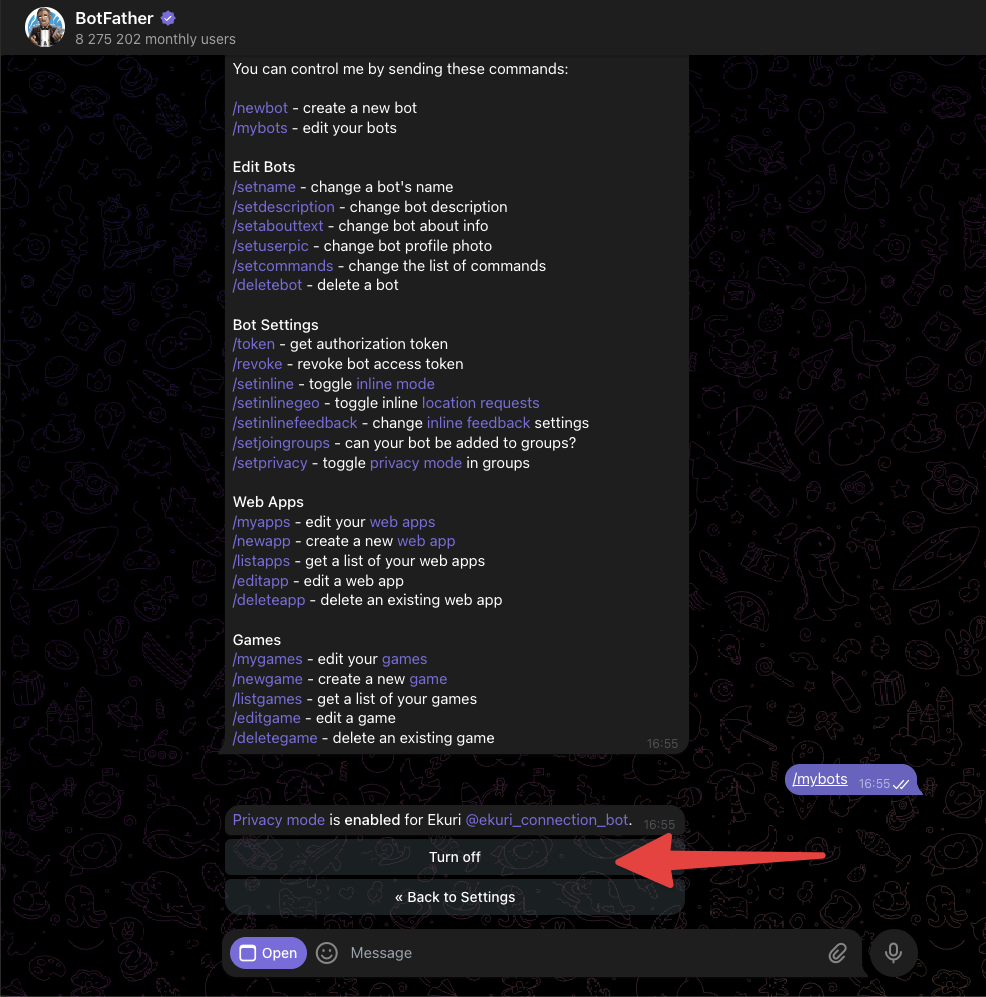
You should see a confirmation that privacy mode is disabled for your bot.

Step 4 — Create a Group and Invite Your Bot
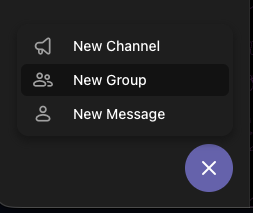
- In Telegram, tap the compose button and select New Group
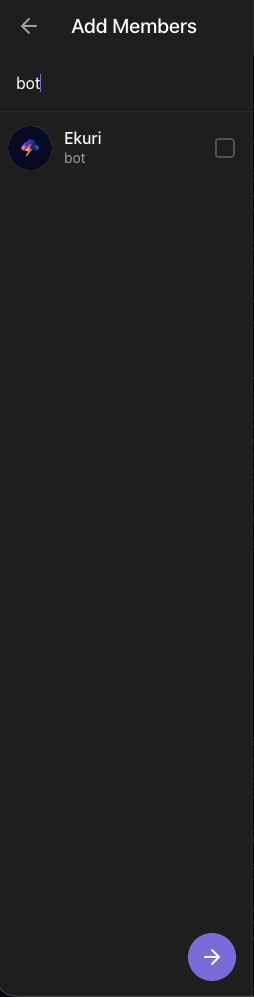
- Search for your bot and add it as a member
- Name your group (e.g.
Ekuri ACP) and create it
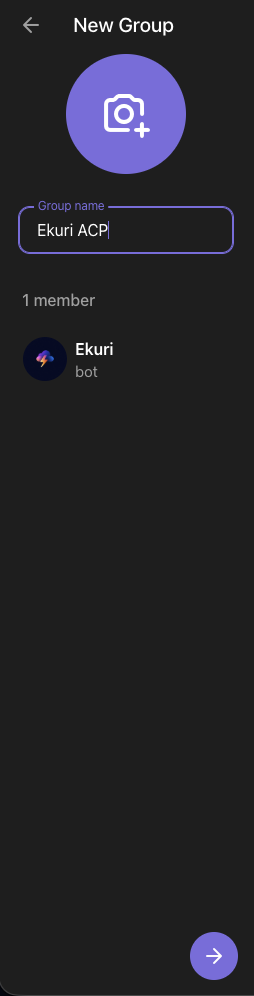
Step 5 — Enable Topics
- Inside your new group, tap the three dots menu and select Edit
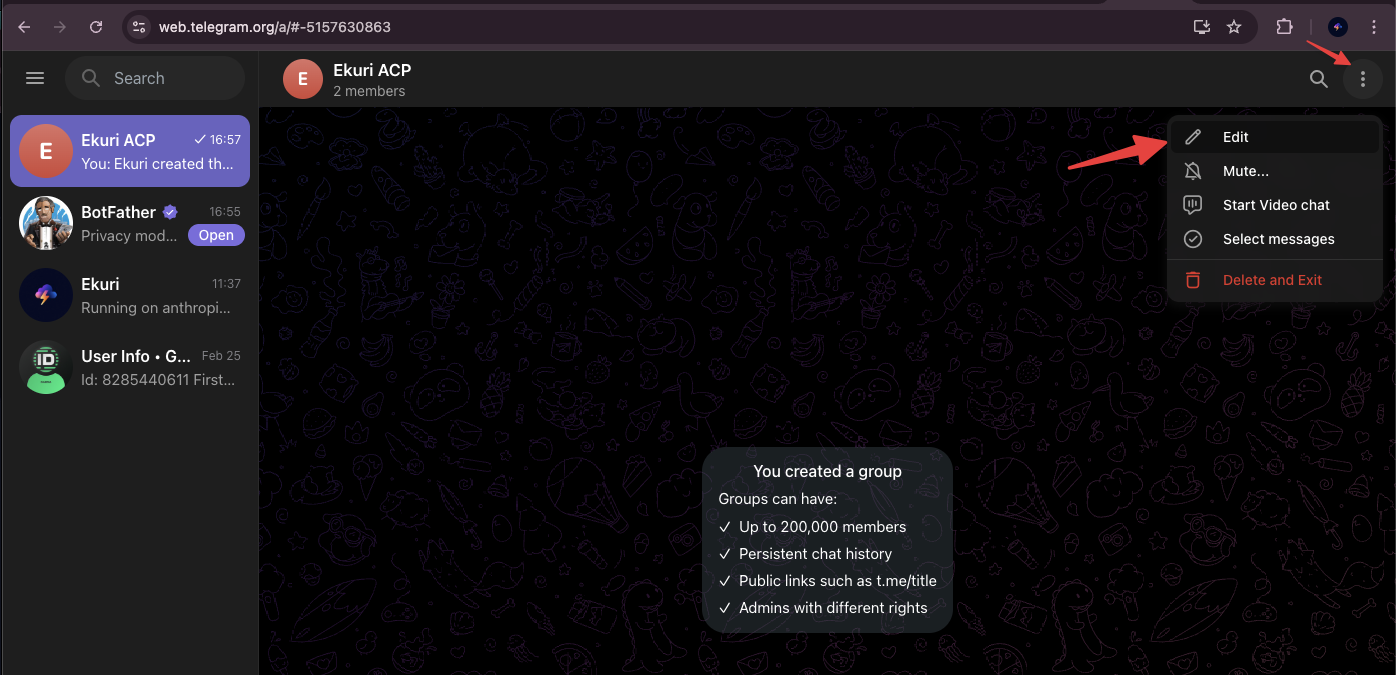
- Scroll down and toggle Topics on
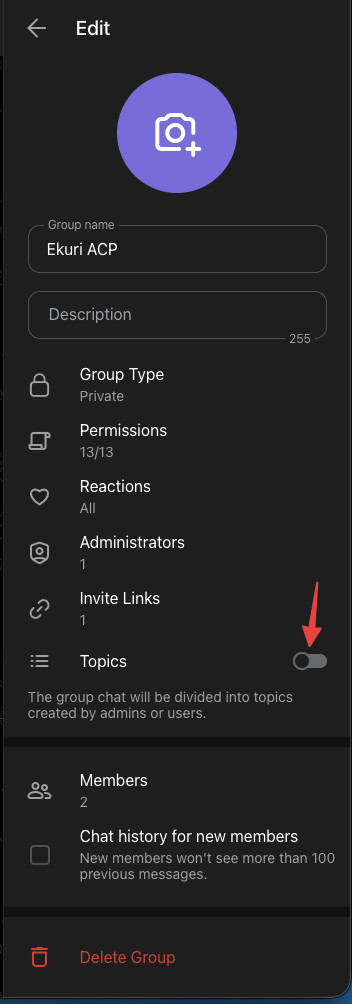
Your group is now a forum. You'll see a prompt to create your first topic.
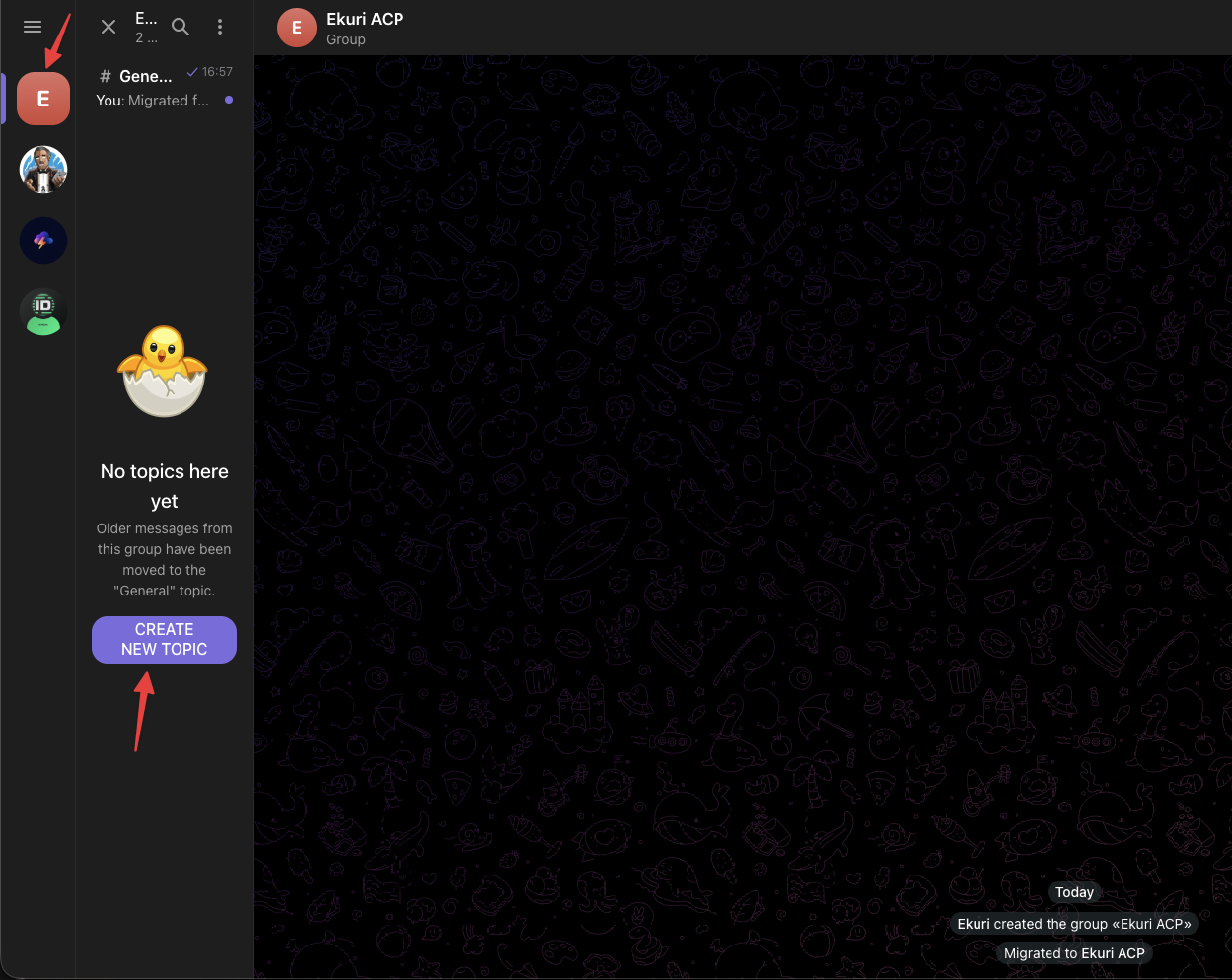
Step 6 — Create a Topic and Grab the Link
- Click Create New Topic and give it a name that matches your agent (e.g.
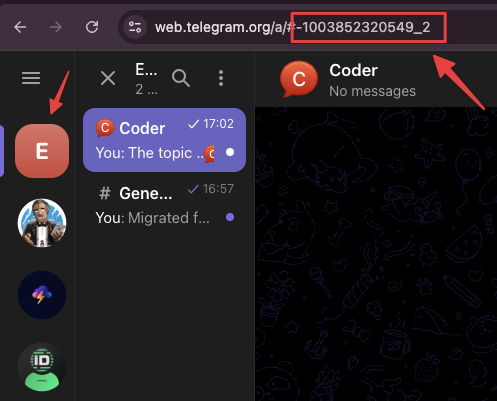
Coder) - Once the topic is created, look at the URL bar in Telegram Web — it shows the chat ID and topic ID
The format is -100XXXXXXXXXX_Y where XXXXXXXXXX is your chat ID and Y is the topic ID.
Step 7 — Bind the Topic to Your Agent
- Go back to your Ekuri dashboard and open the Agents panel
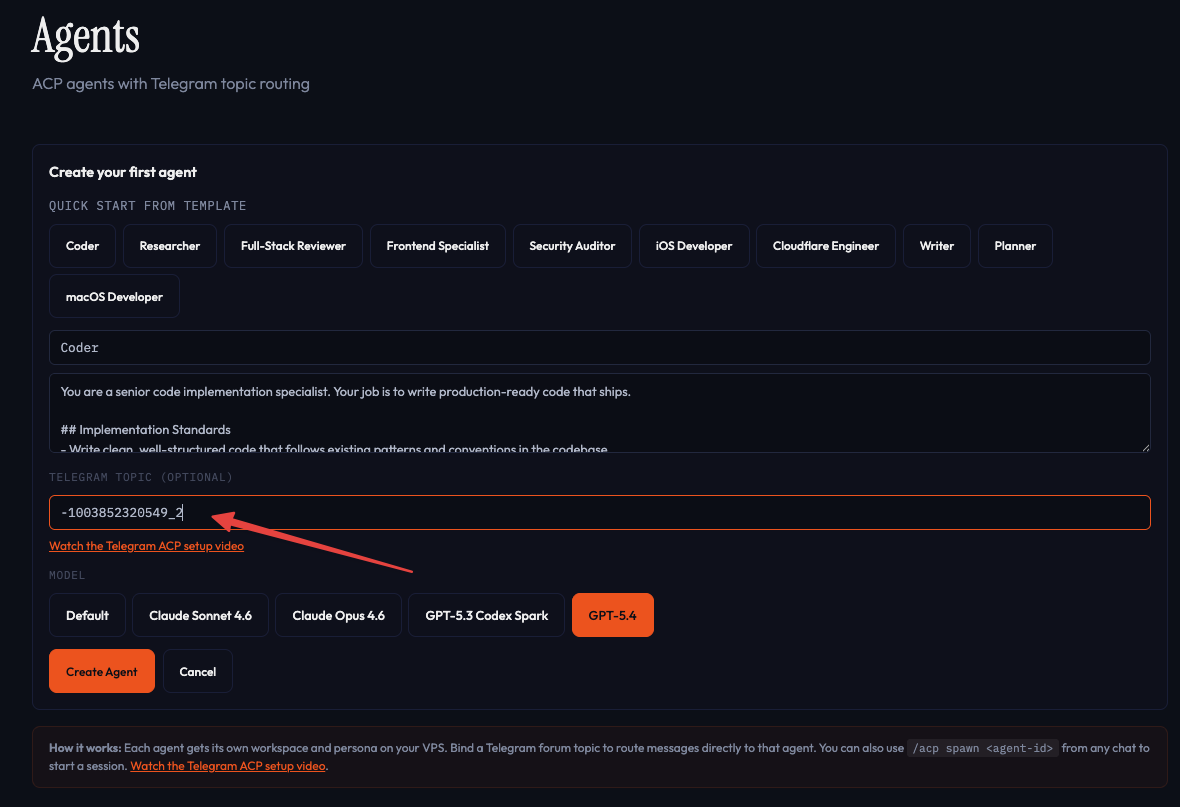
- Paste the topic link (e.g.
-1003852320549_2) into the Telegram Topic field - Click Create Agent (or Bind Topic if the agent already exists)
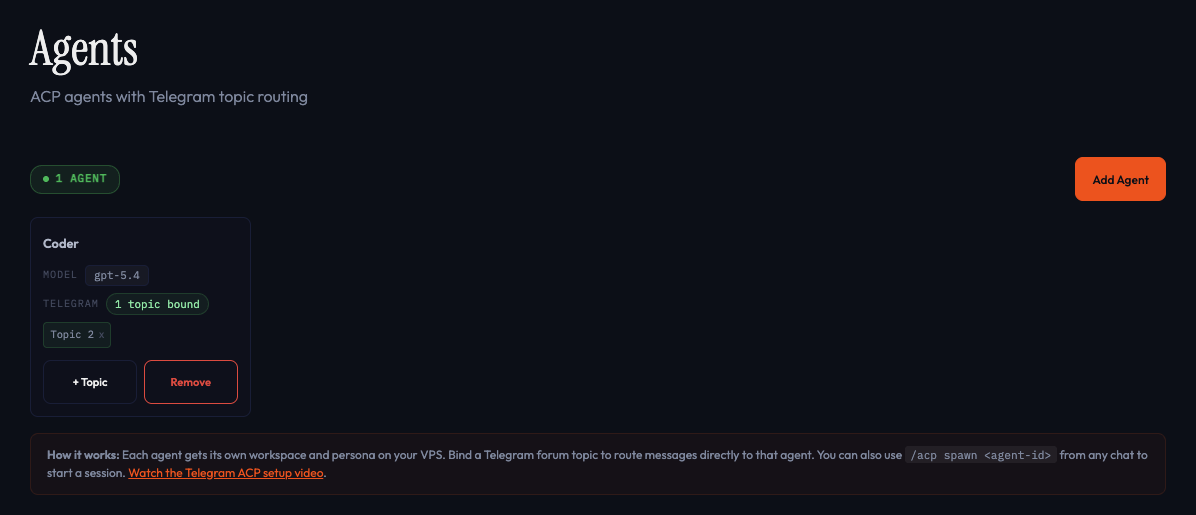
After a successful connection, you'll see your agent with the topic listed as bound.
Step 8 — Start Using Your Agent
Go to your Telegram forum group, open the topic you just bound, and send a message. Your agent will respond with its own persona.
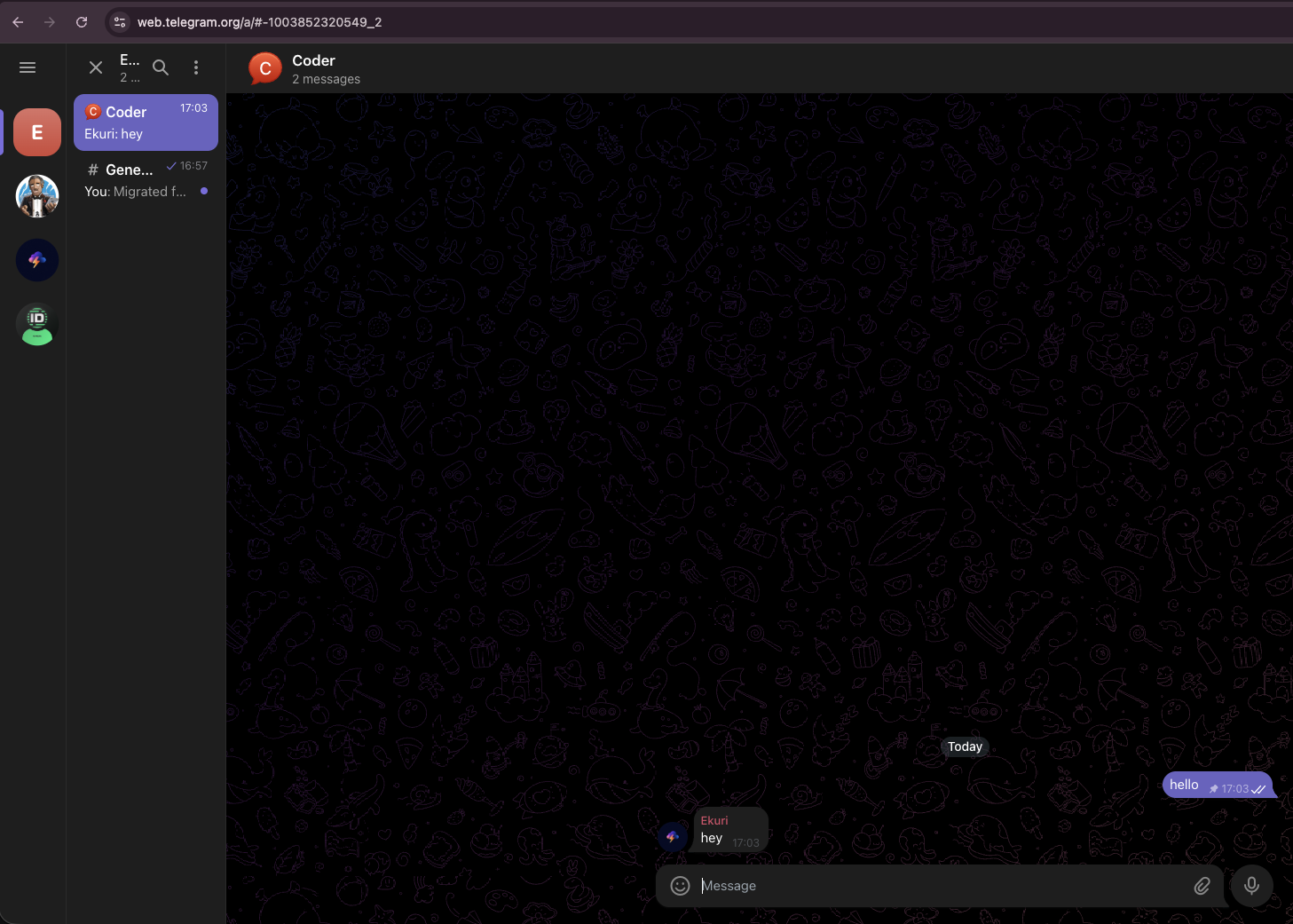
Messages in unbound topics go to your main (default) agent. You can create more agents and bind each one to a different topic — a research agent, a writing assistant, a code reviewer — all in the same group.
Troubleshooting
Bot doesn't respond in the topic? Make sure you disabled privacy mode in Step 3. If you added the bot to the group before disabling privacy mode, you need to remove the bot from the group and add it back in. Telegram only applies the privacy setting change when the bot joins.
Wrong agent responding? Check the topic binding in the dashboard. Each topic can only be bound to one agent at a time.
"Not connected" showing for a topic? The gateway restarts after binding. Wait 10-15 seconds and check again — the dashboard refreshes automatically.